ELIT User Guide
Page 3 of 73. Supplier Management
Supplier Management allows suppliers to maintain and update their business information, including contact details, product offerings, certifications, and compliance documents. By keeping profiles up to date, suppliers ensure accurate representation within the platform, facilitating seamless communication and efficient procurement processes with buyers. This process supports transparency, compliance, and enhances supplier visibility for potential business opportunities.
3.1 Create Supplier Profile
Upon password creation for supplier profile, you will be redirected profile page.
3.2 Company Information
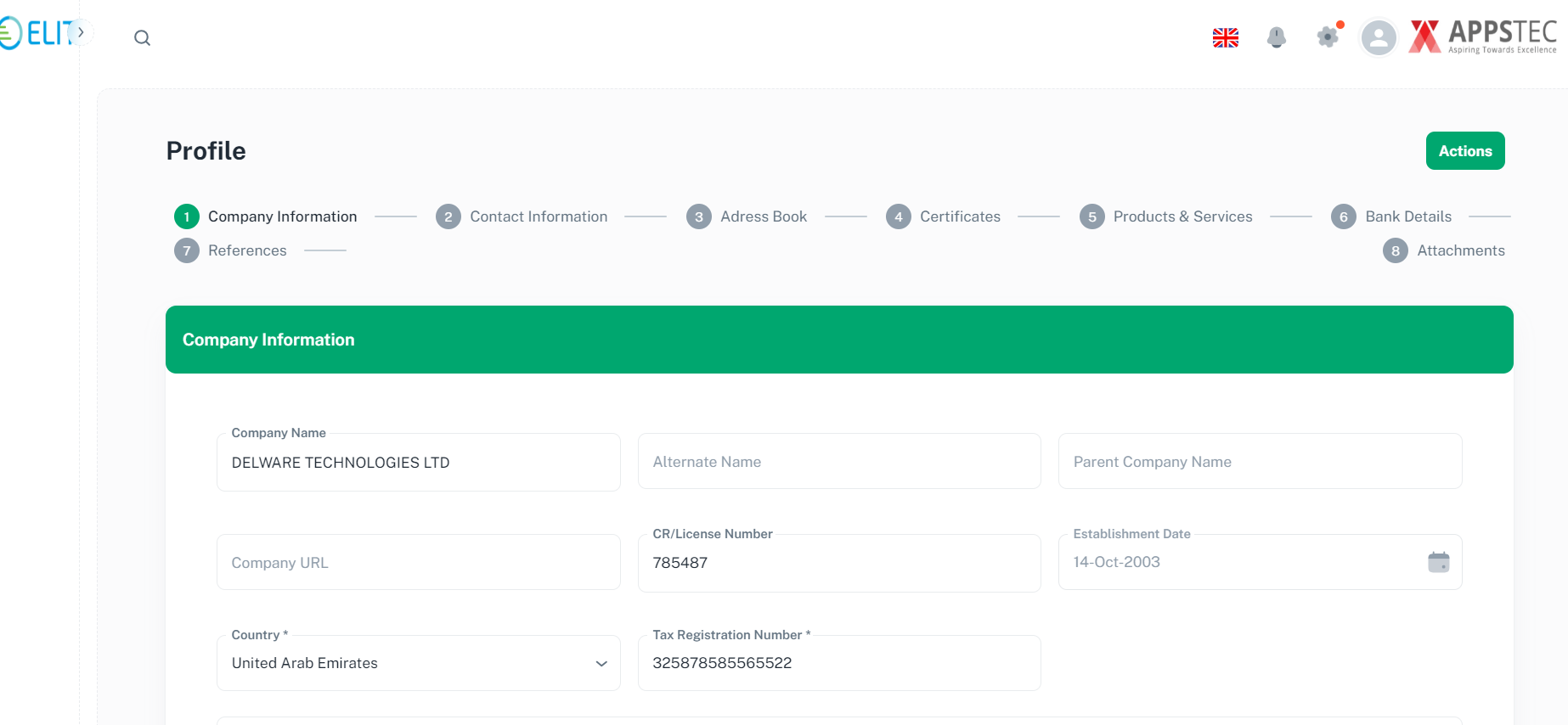
Please review your company information and provide necessary information and click ‘Next’ to proceed.
You will be redirected to ‘Contact Information’ tab.
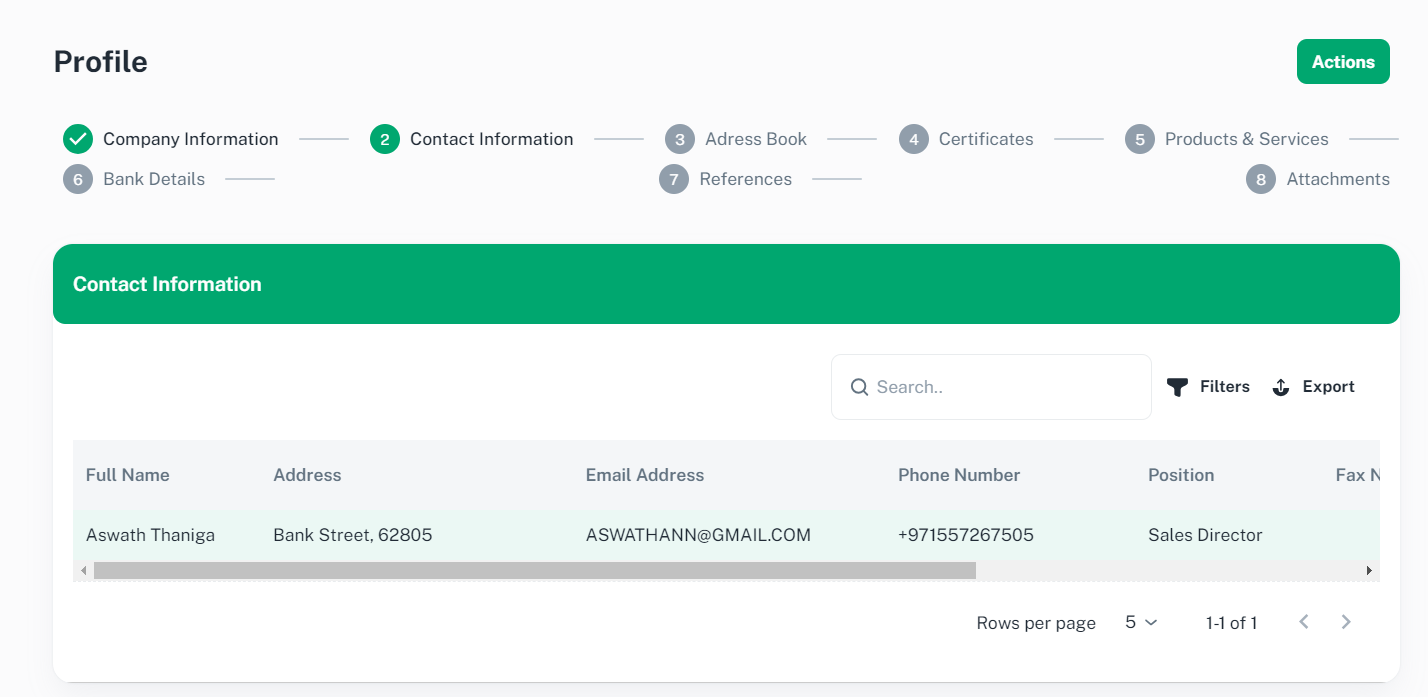
3.3 Contact Information
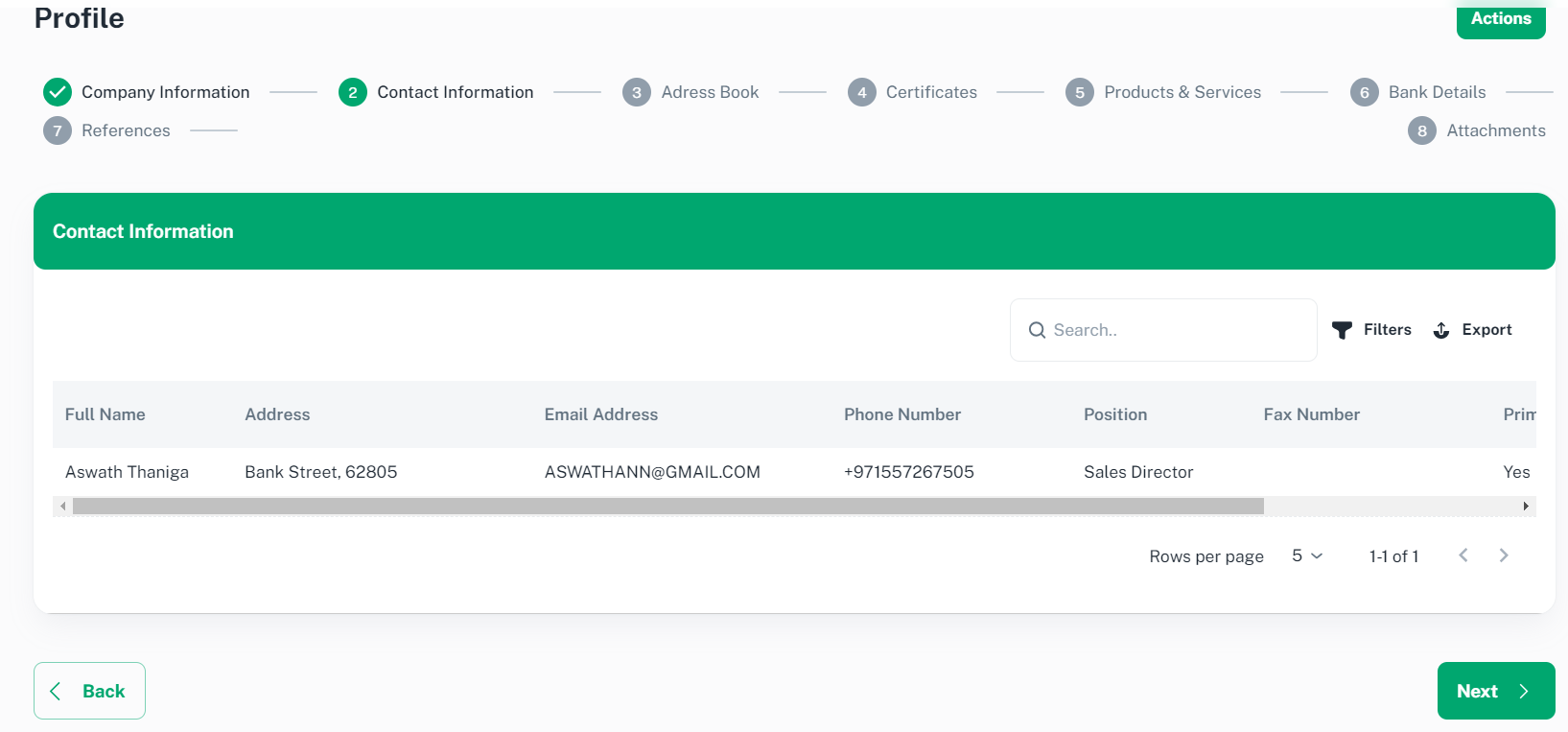
Please click on row to review and update contact details.
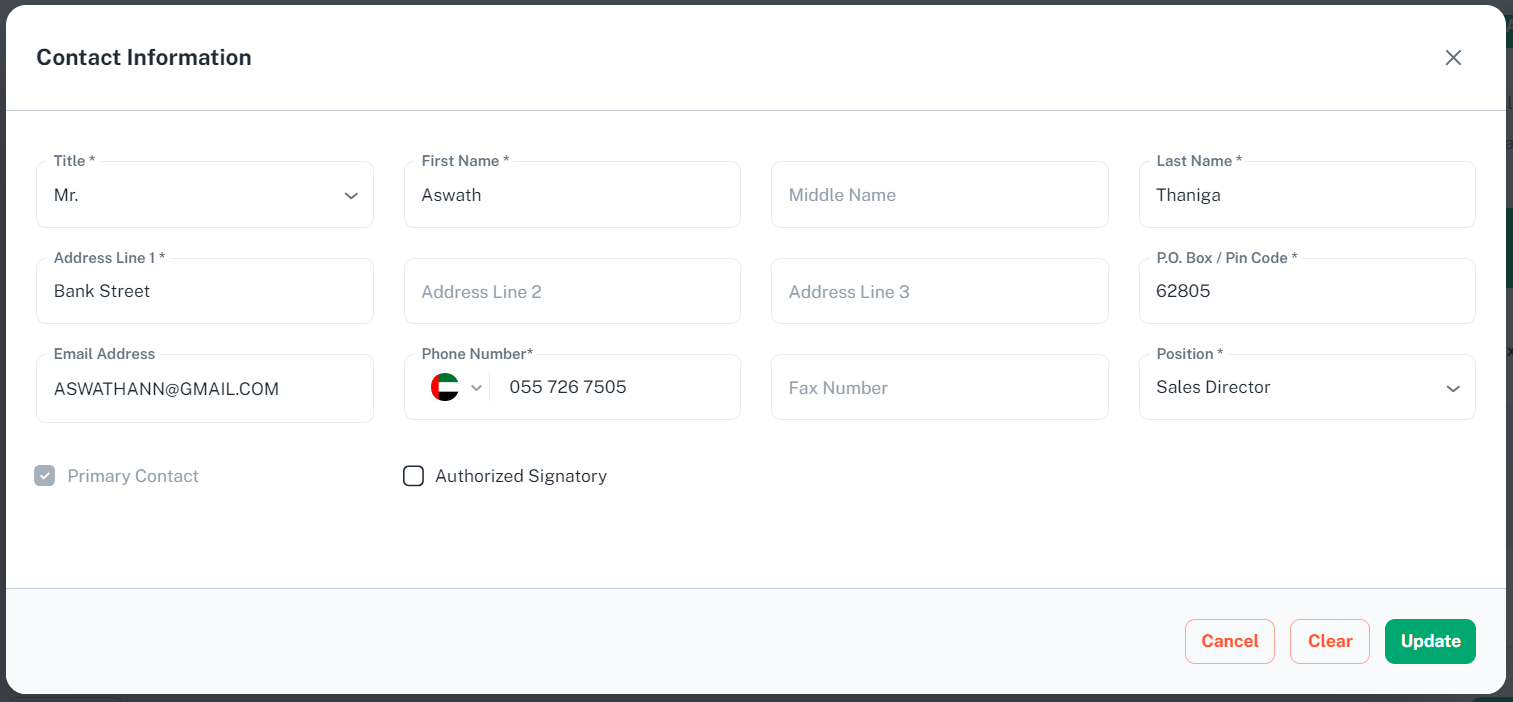
Click ‘Cancel’ or ‘Update’ to proceed
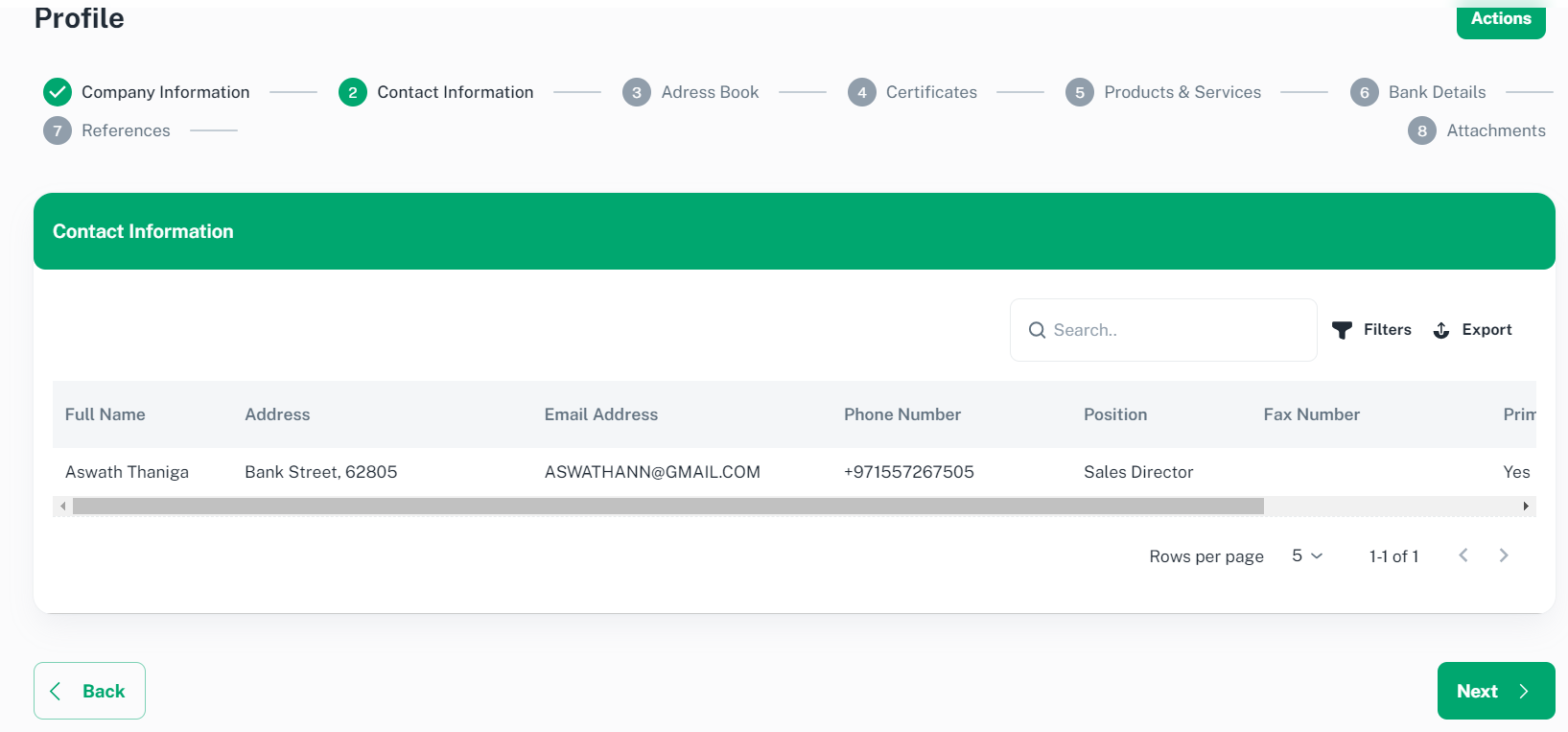
Click ‘Next’ to proceed, you will be redirected to Address Book tab.
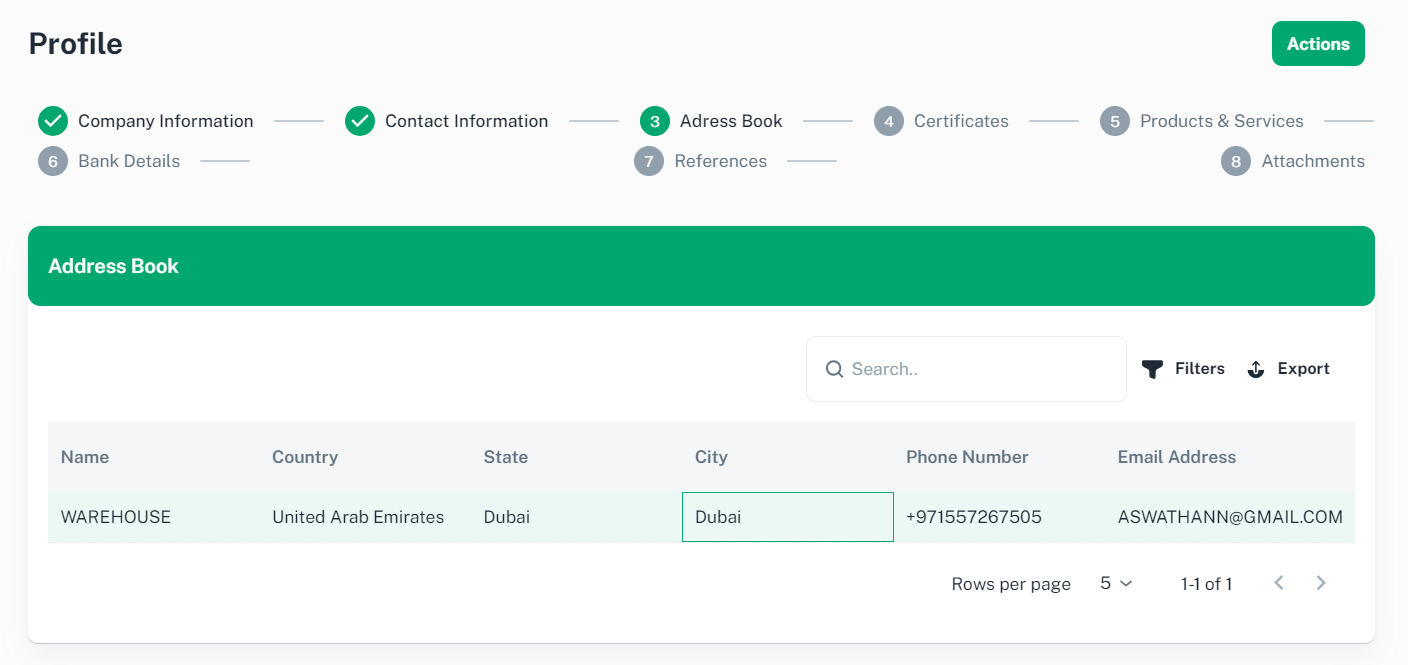
3.4 Address Book
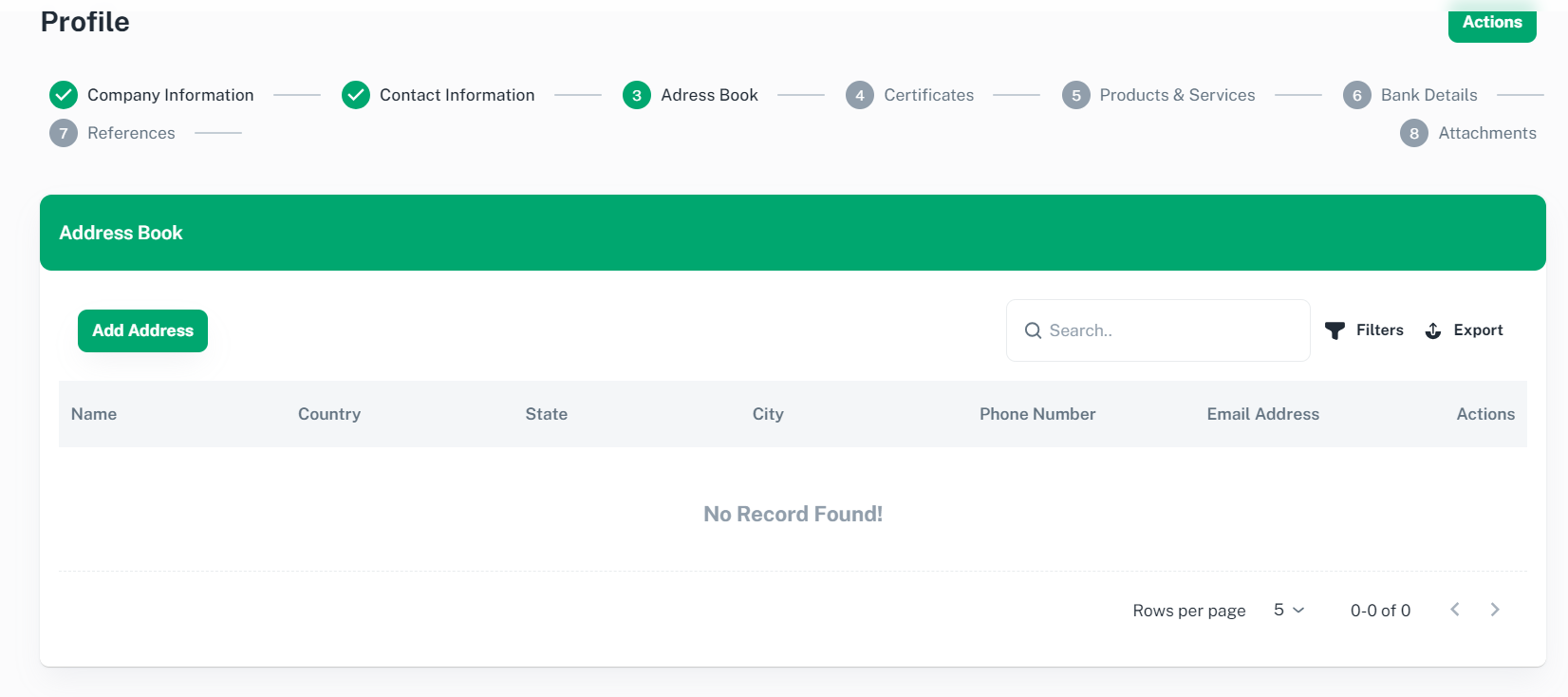
Please click ‘Add Address’ to proceed. You will be redirected to Address Book page
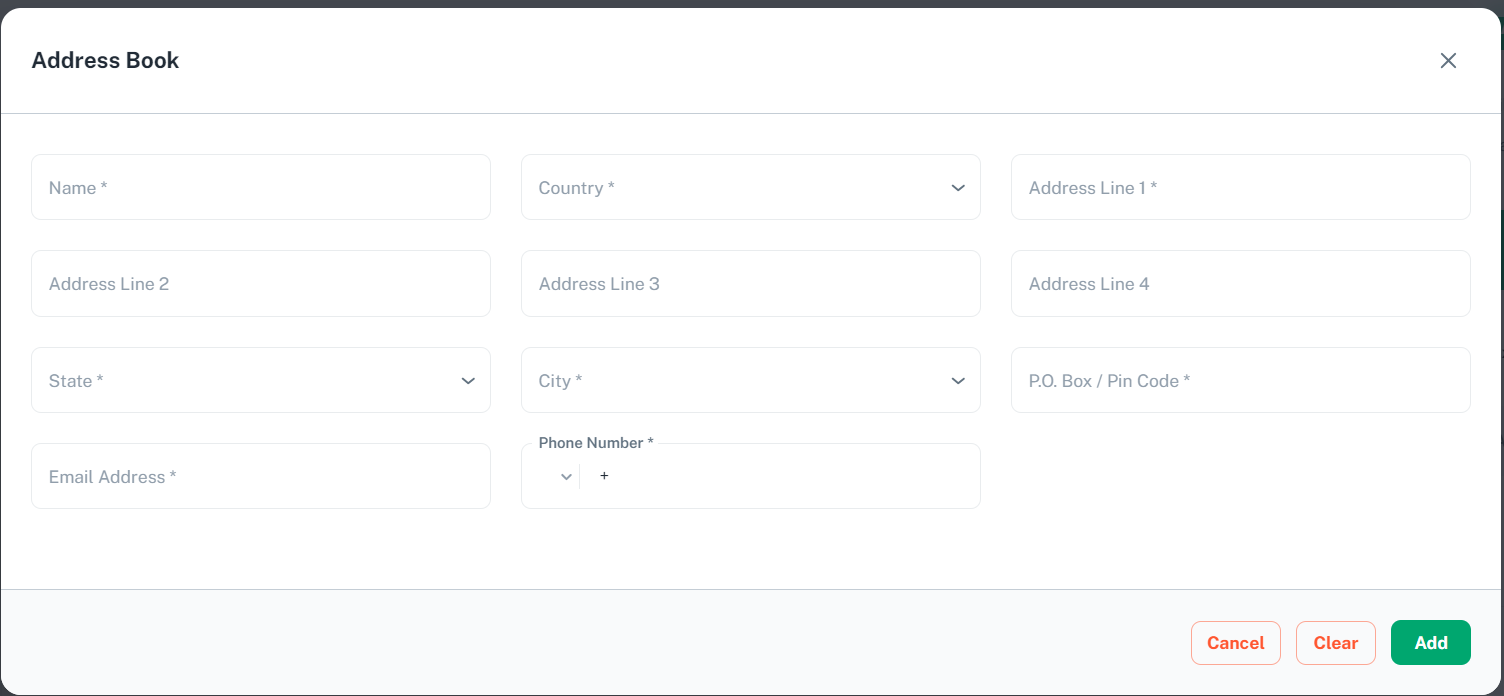
Provide necessary information and click ‘Add’ to proceed
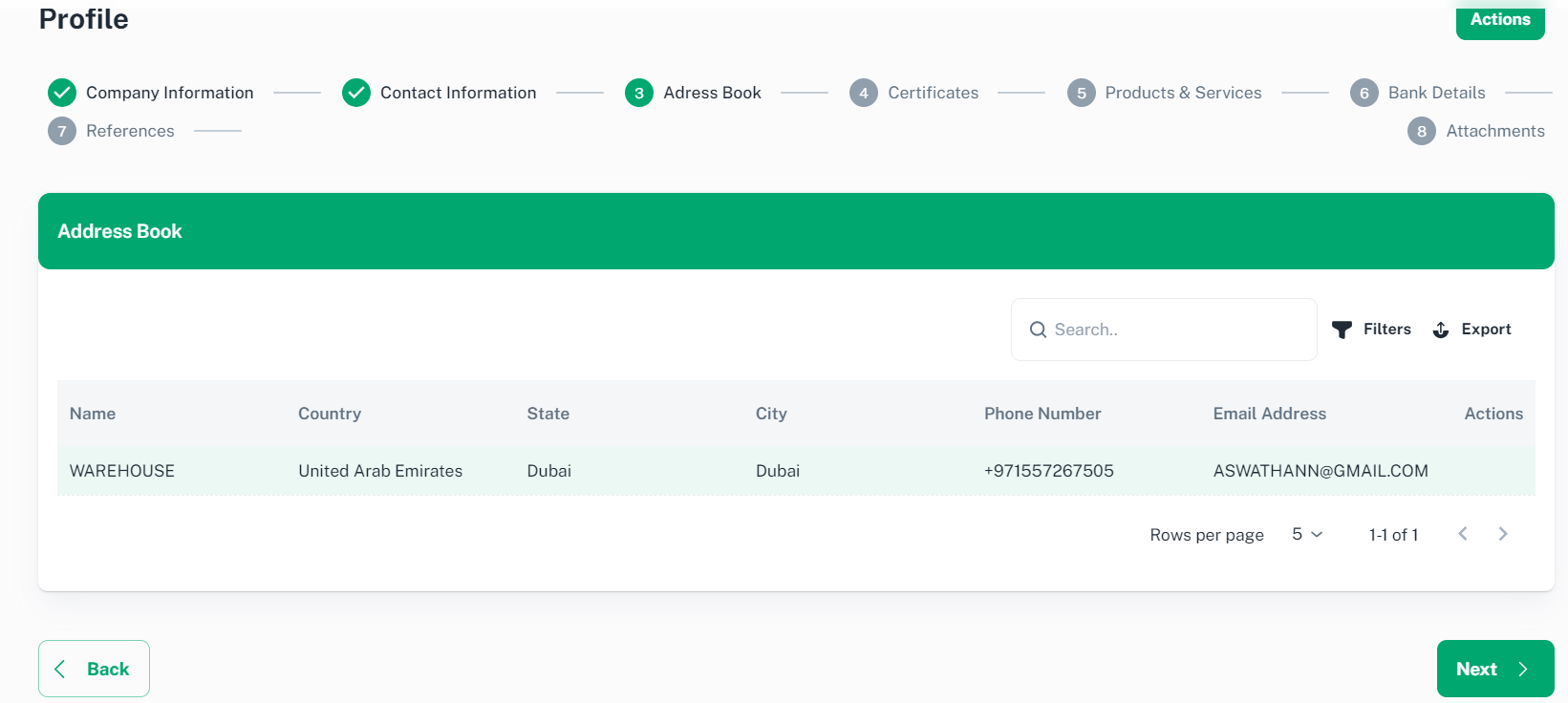
Click ‘Next’ to proceed, you will be redirected to Certificates tab.
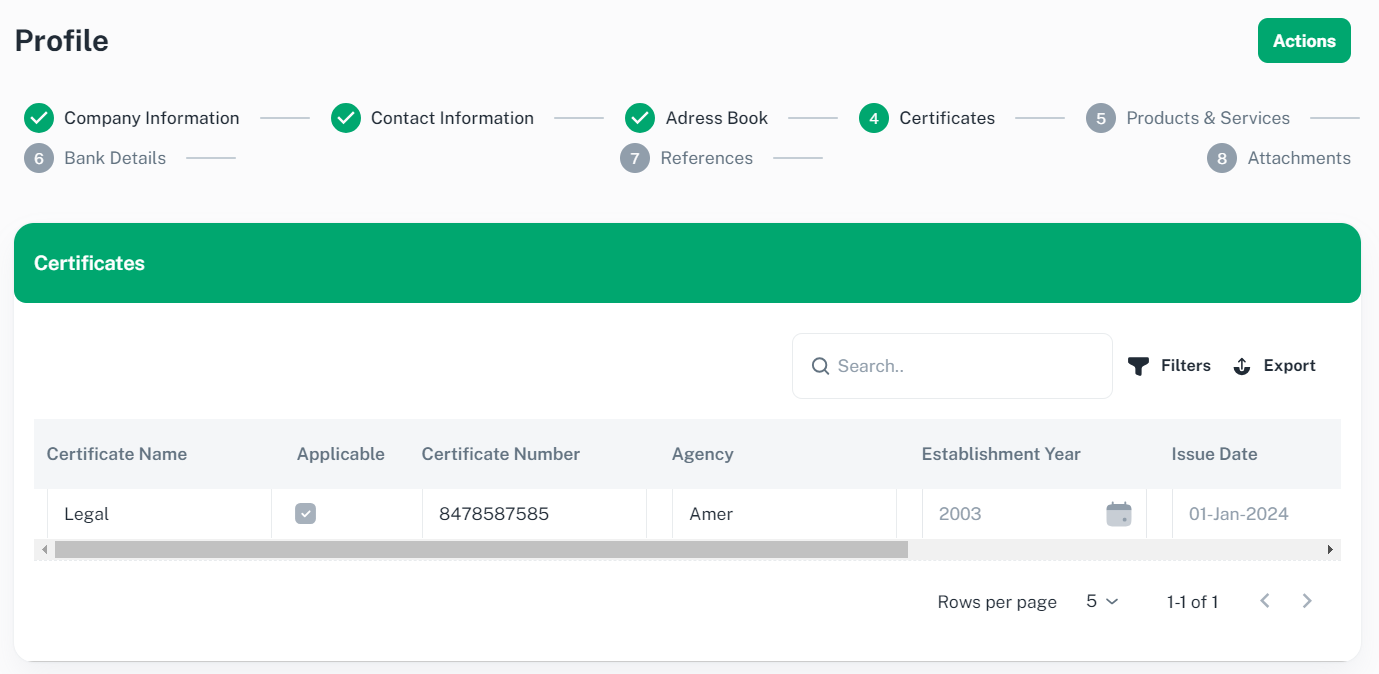
3.5 Certificates
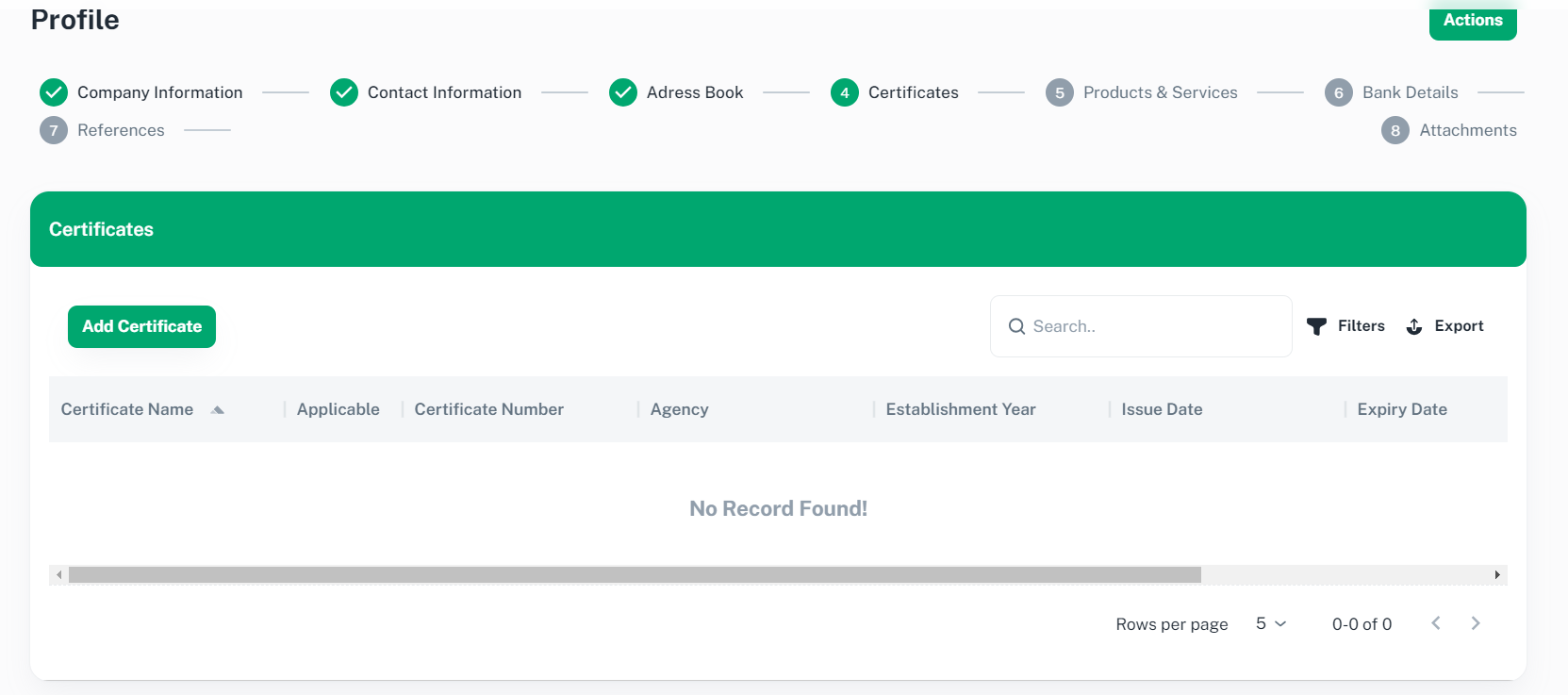
Please click ‘Add Certificate’ to proceed. Provide necessary information on the below table and Click ‘Tick’ to proceed.
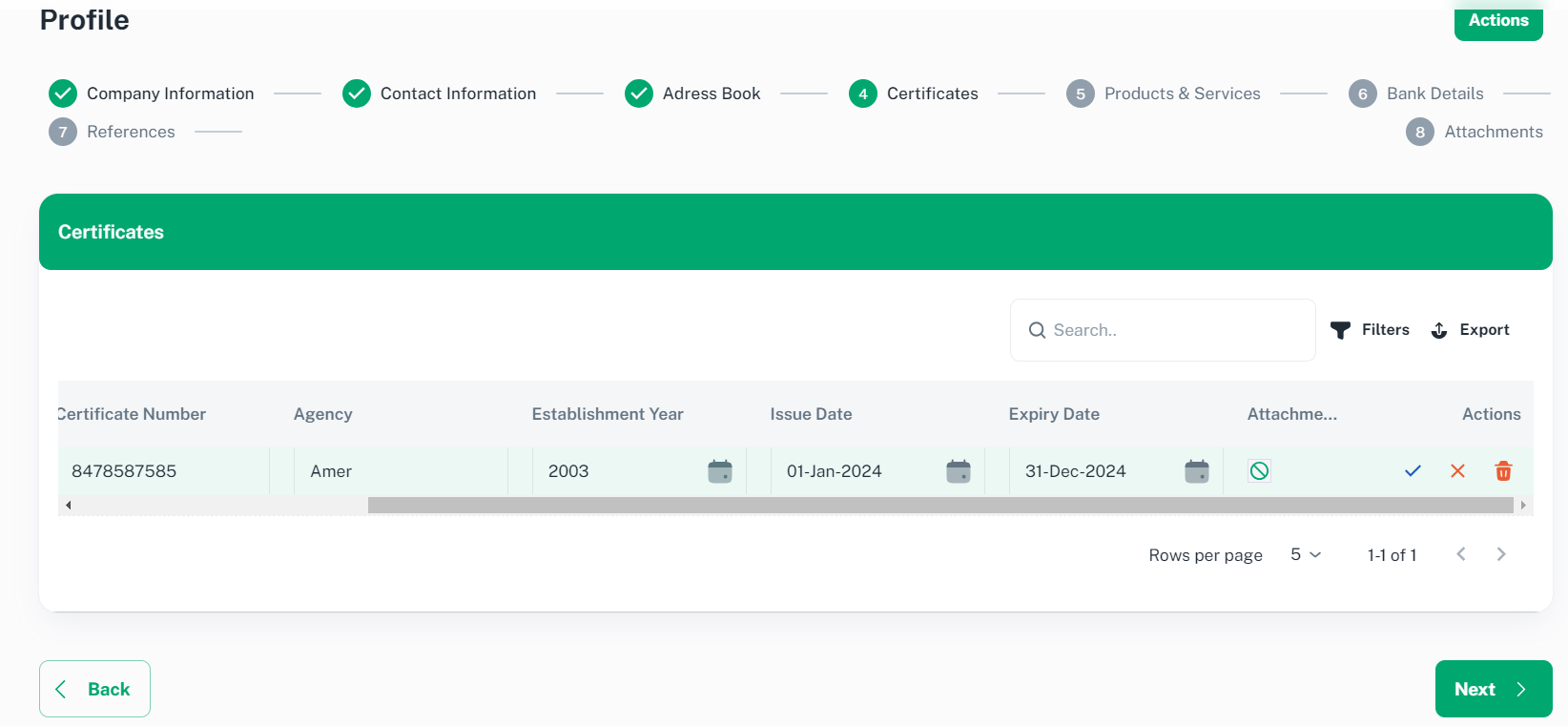
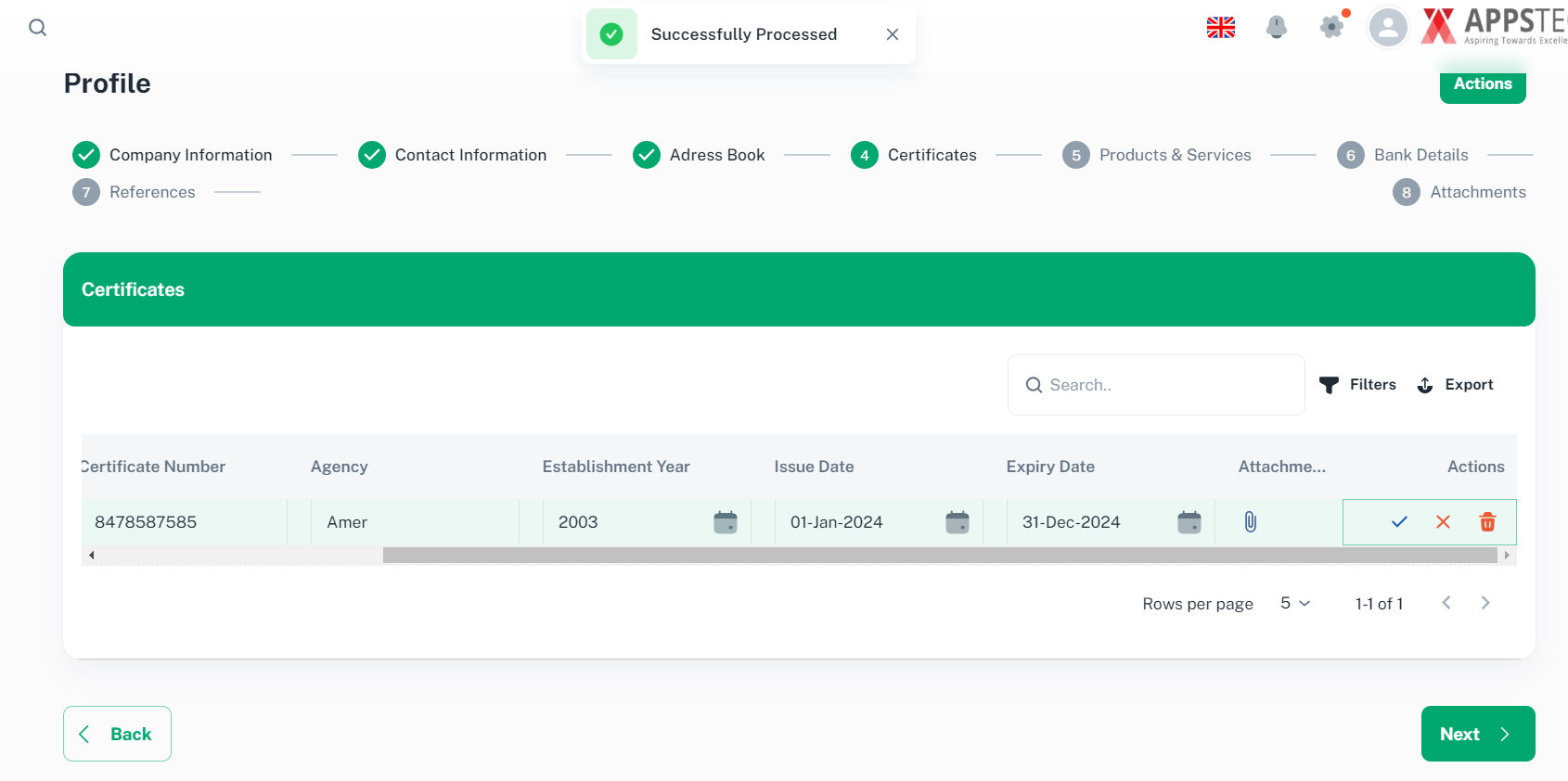
Click ‘Next’ to proceed, you will be redirected to Products & Services tab.
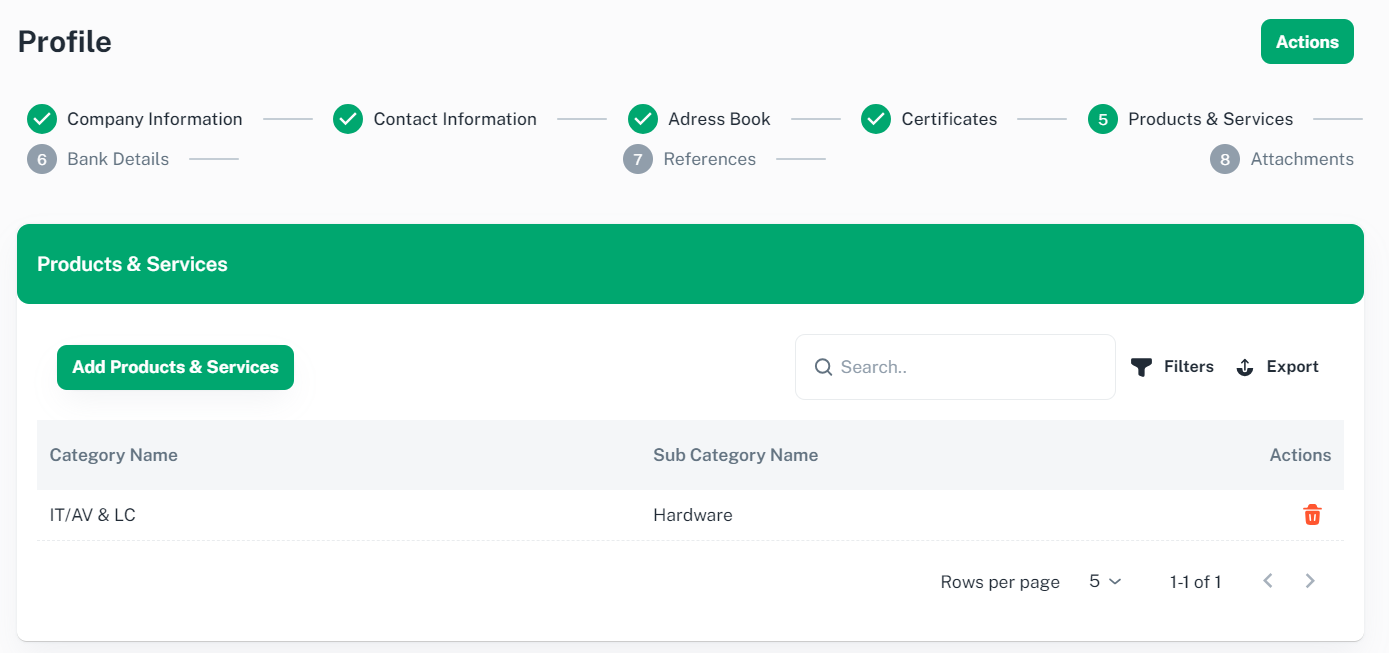
3.6 Product and Services
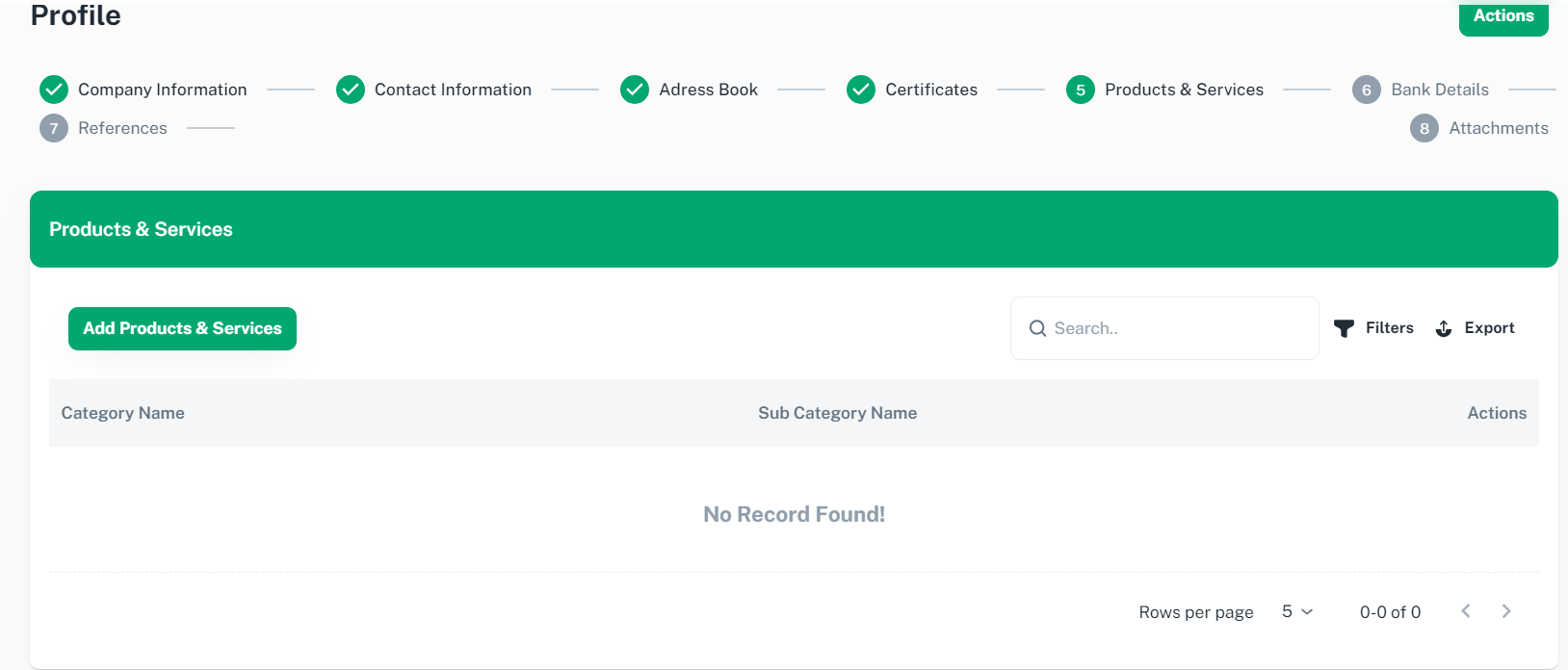
Please Click ‘Add Products & Services’ to proceed. You will be redirected to Product & Services page
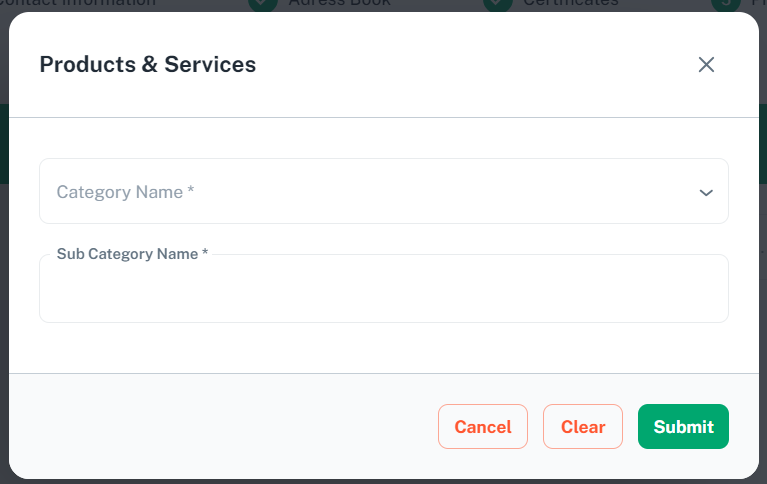
Please select desired category and sub category information and click ‘Submit’ to proceed.
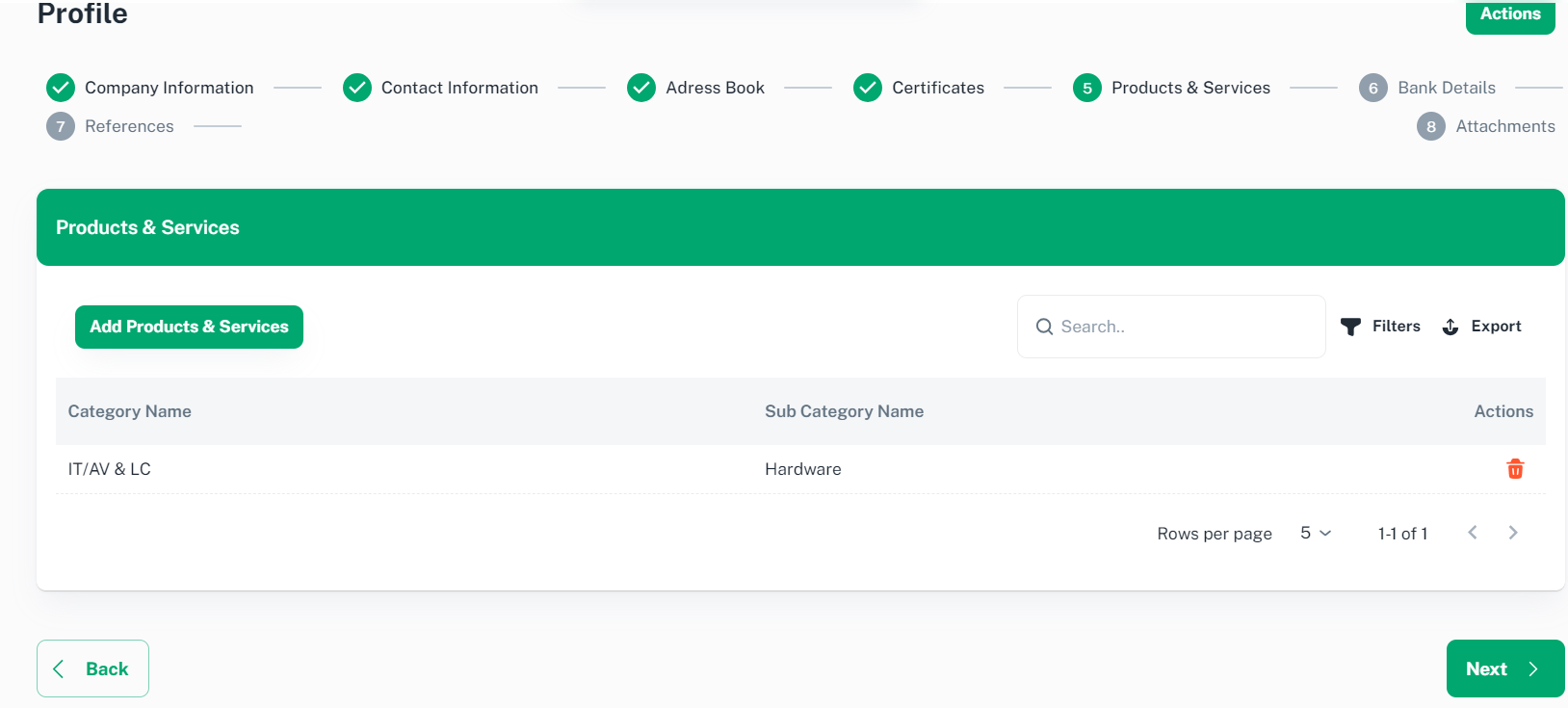
Click ‘Next’ to proceed, you will be redirected to Bank Details tab.
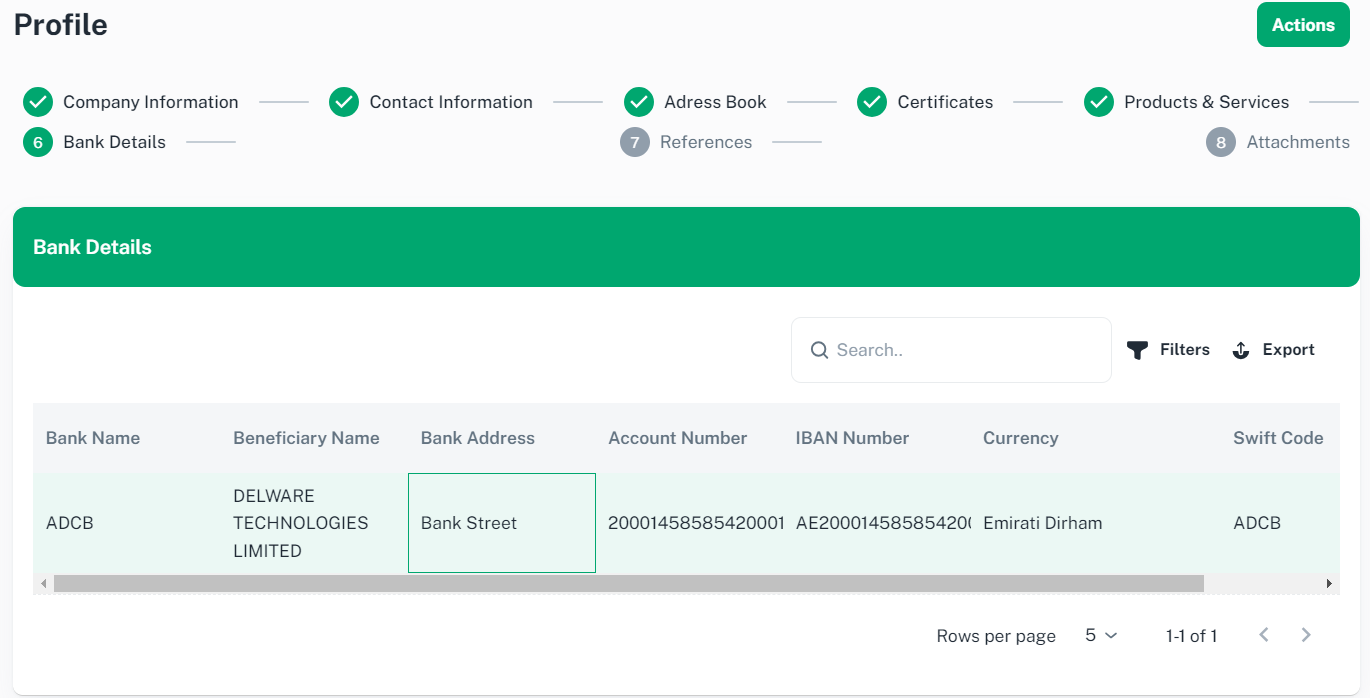
3.7 Bank Details
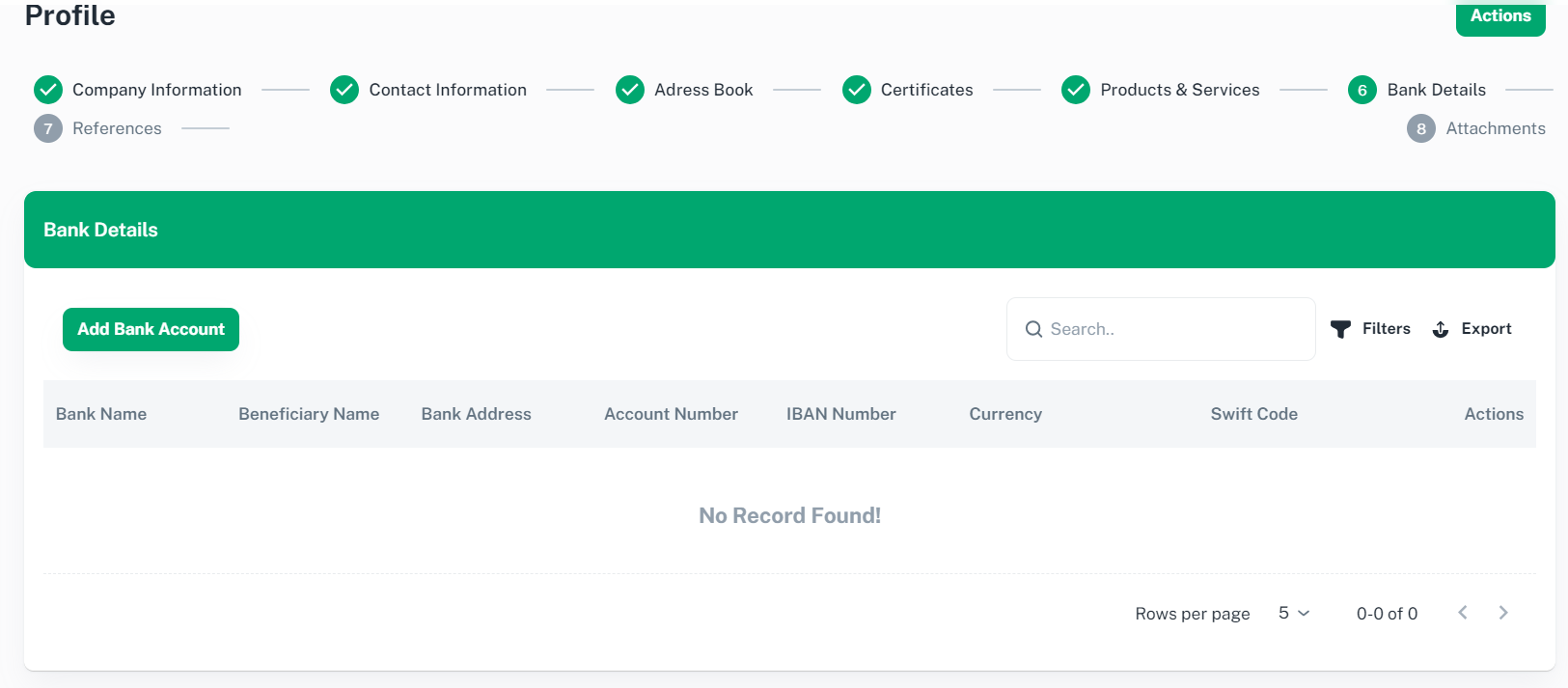
Please Click ‘Add Bank Account’ to proceed. You will be redirected to Bank Details page.
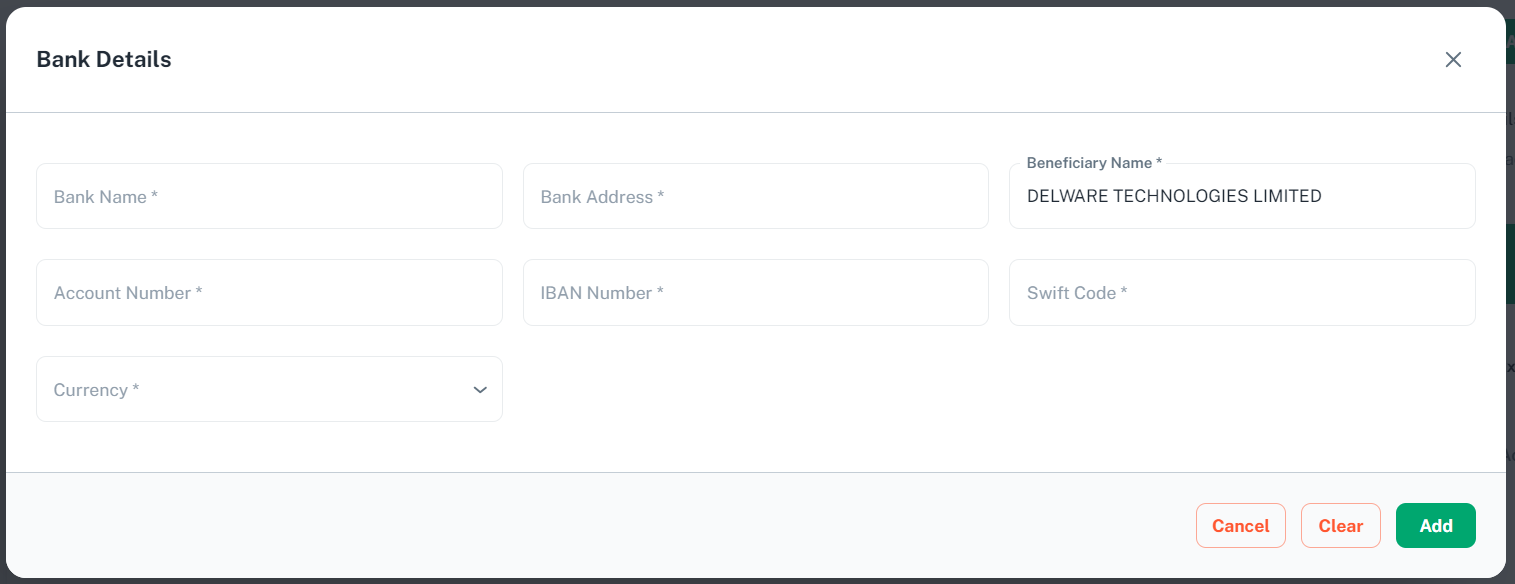
Please provide necessary information and click ‘Add’ to proceed.
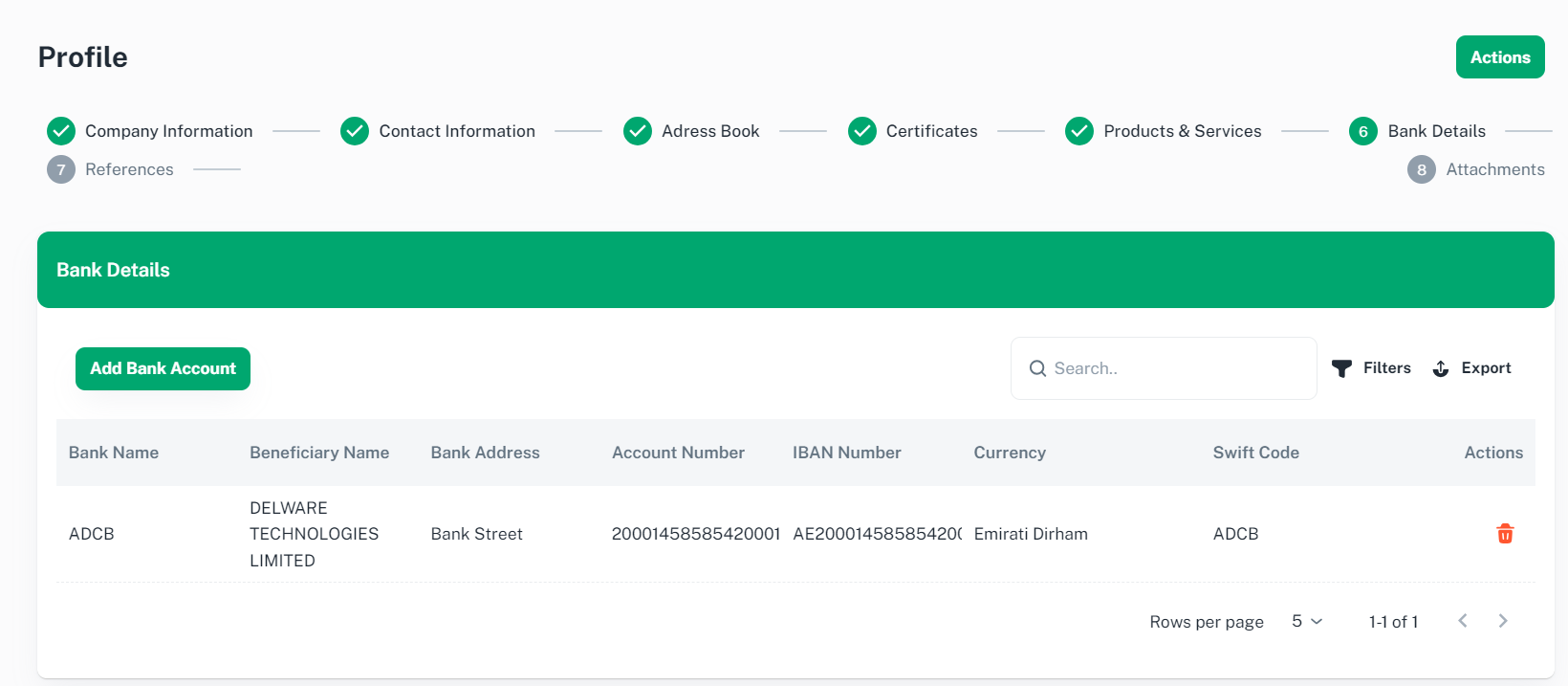
Click ‘Next’ to proceed, you will be redirected to References tab.
3.8 References
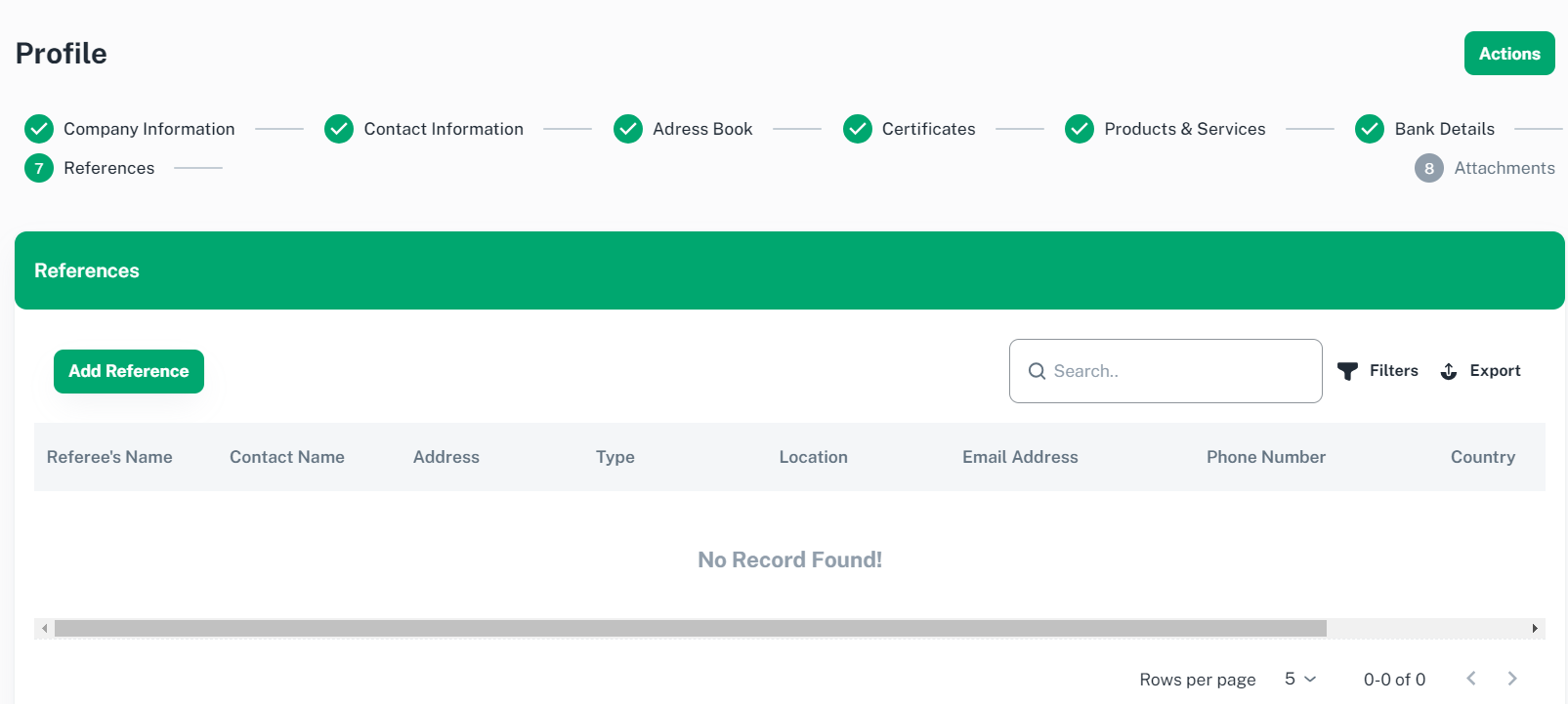
Click ‘Add Reference’ to proceed. you will be redirected to References page
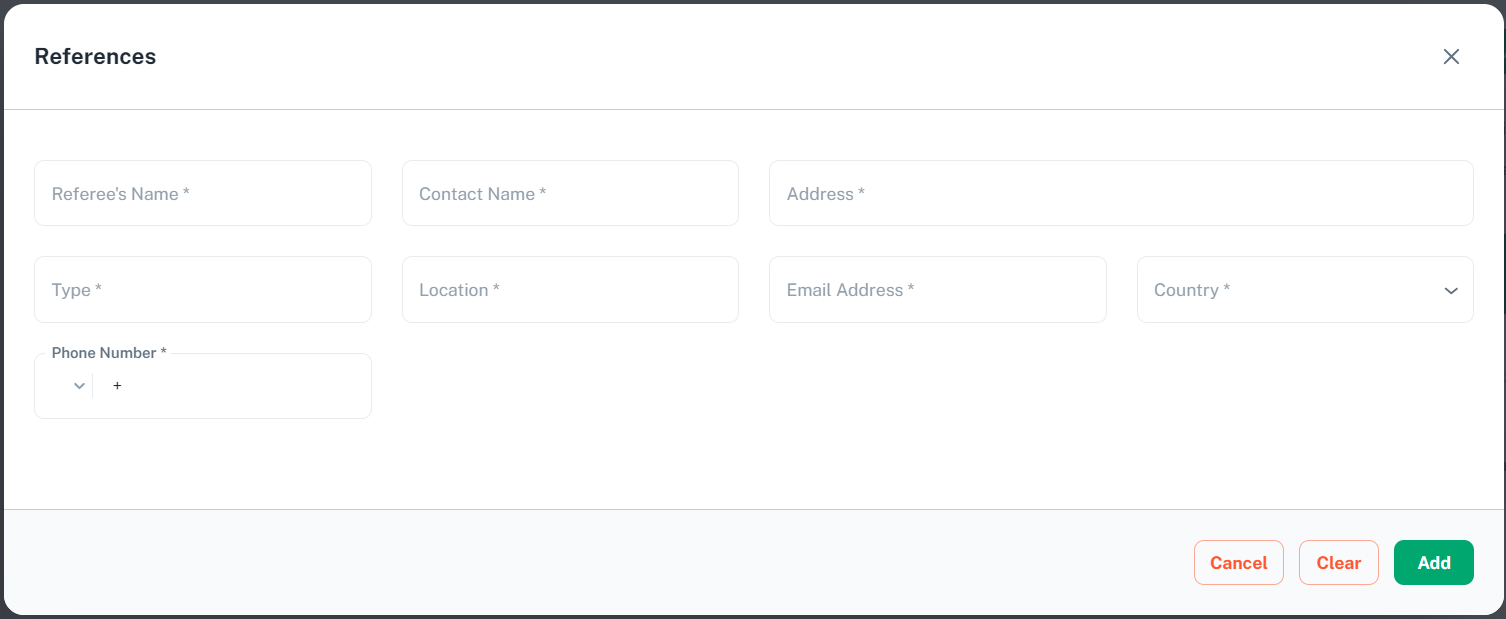
Please provide necessary information and click ‘Add’ to proceed.
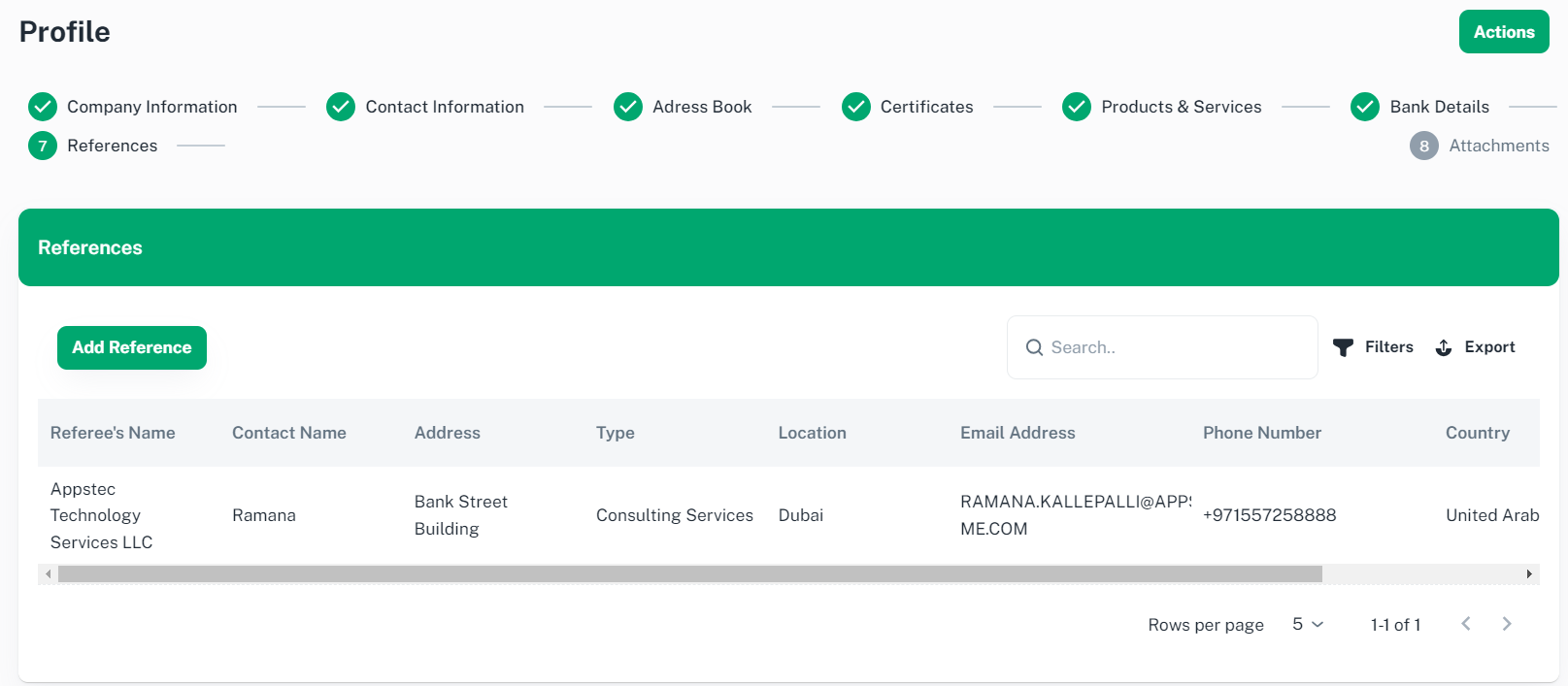
Click ‘Next’ to proceed, you will be redirected to Attachments Tab
3.9 Attachments
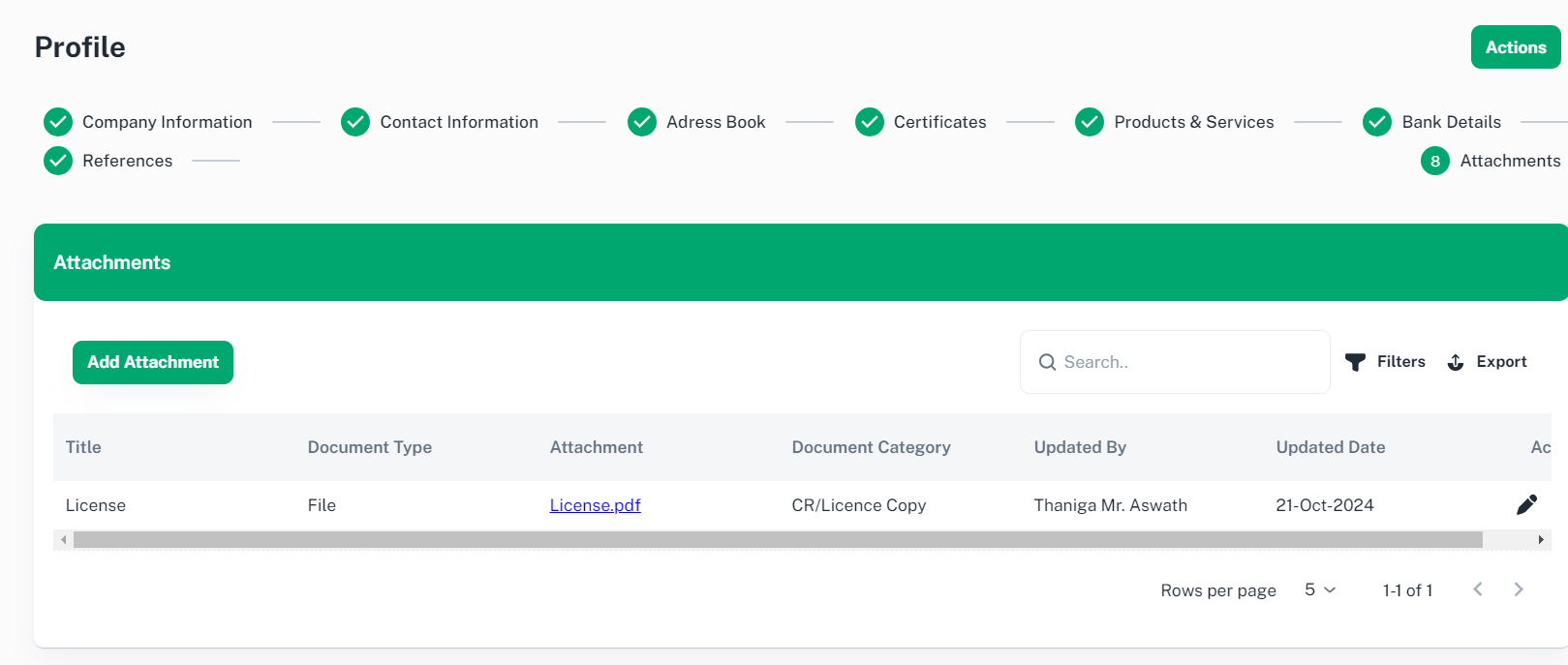
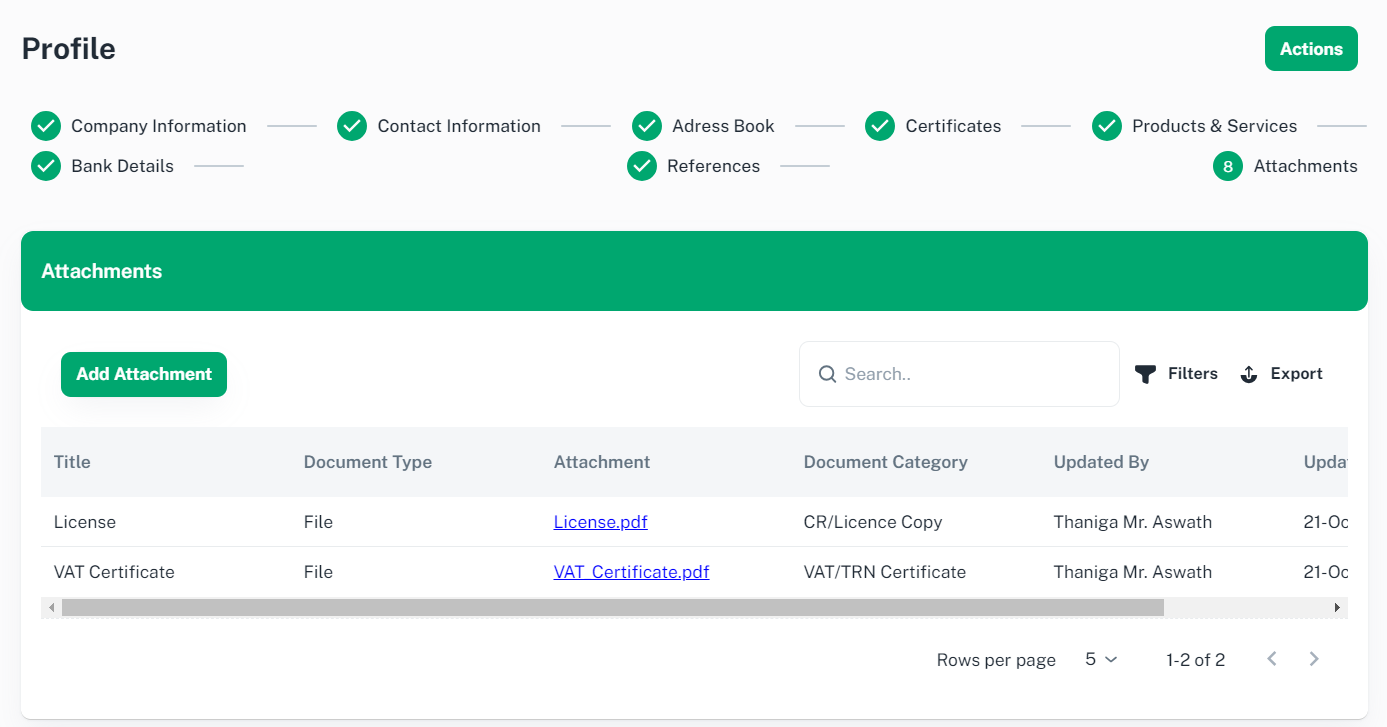
Please click ‘Add Attachment’ to proceed. You will be redirected to Attachment page.
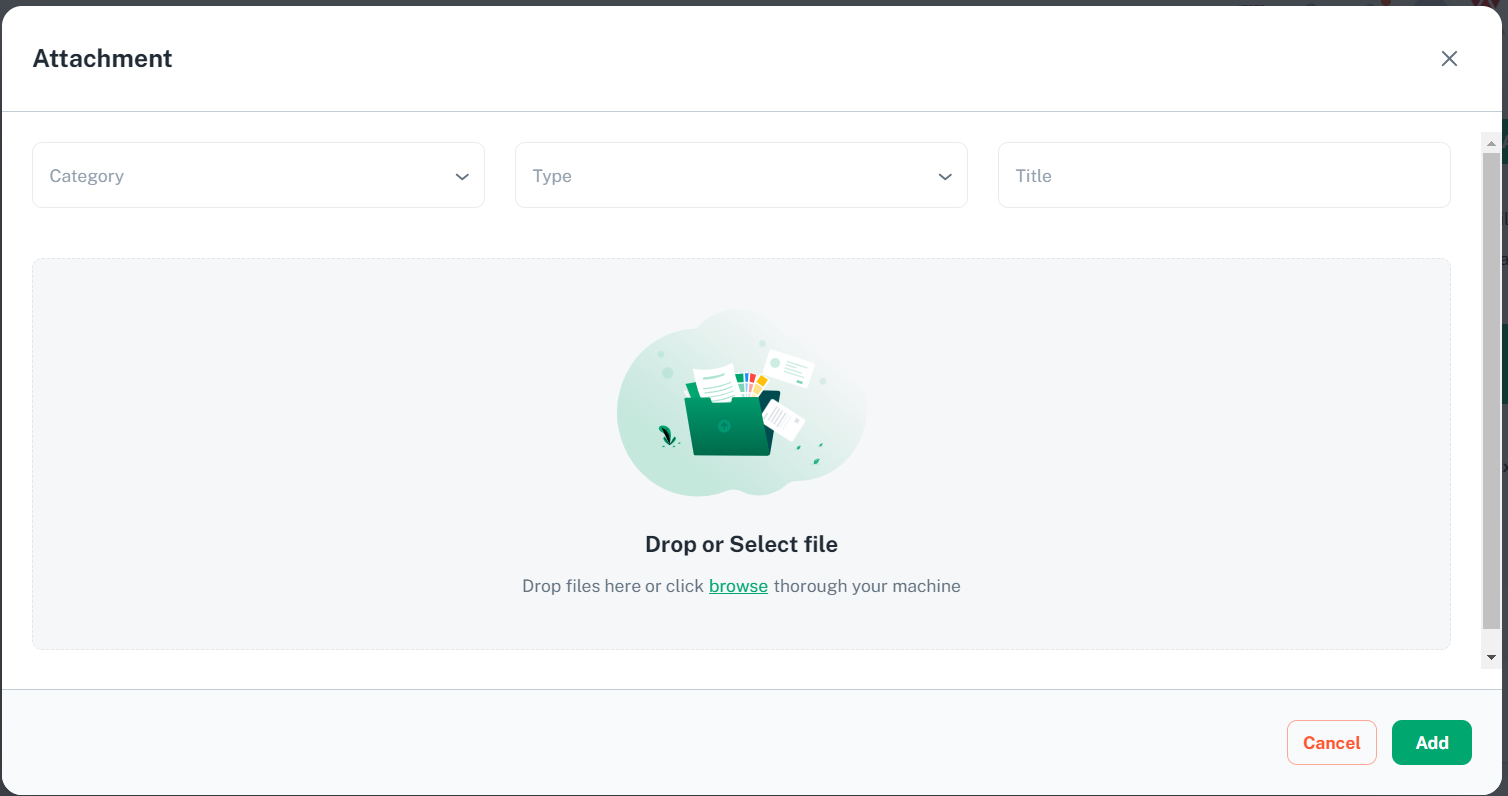
Please provide necessary information and click ‘Add’ to proceed
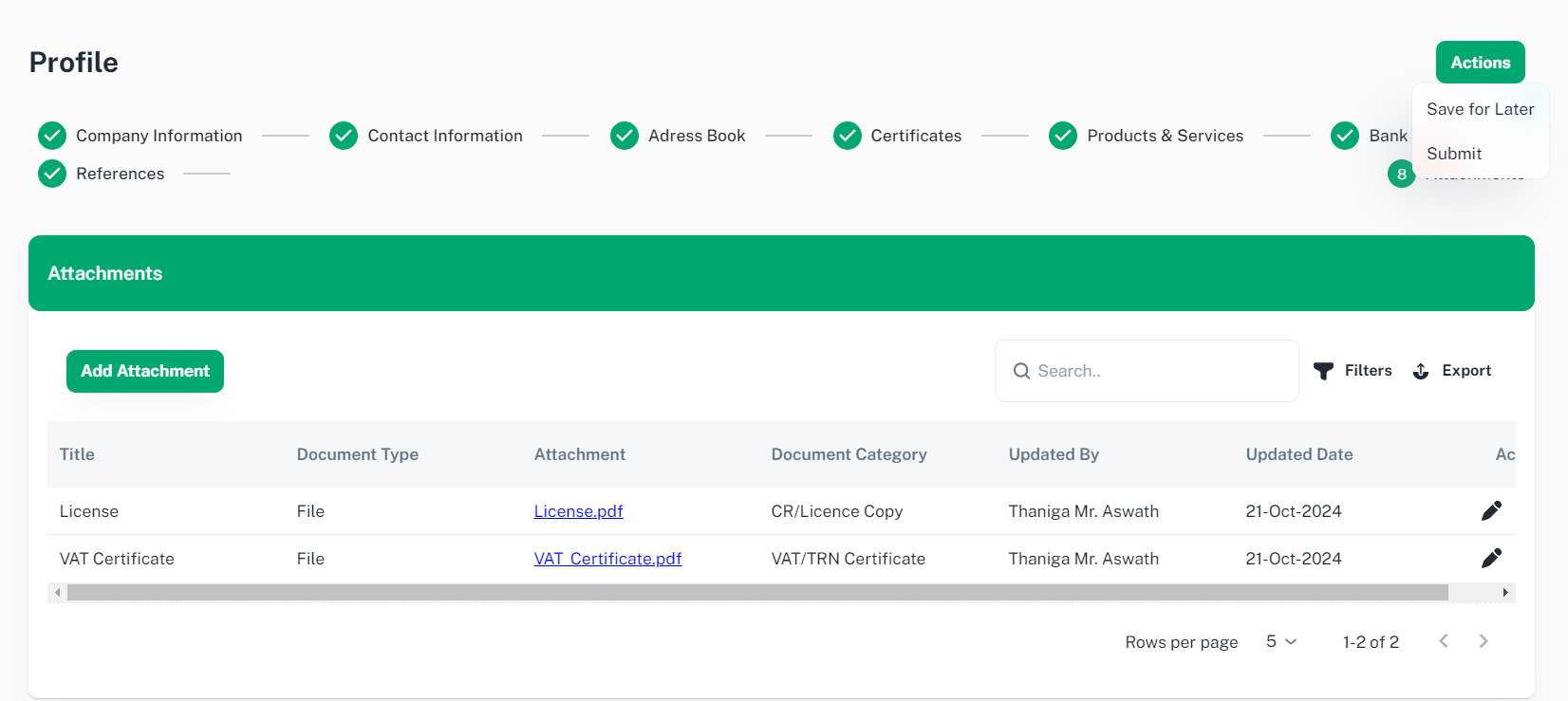
Click ‘Action’ to Submit or Save for Later.
In order to submit profile for approval, Please click ‘Action’ and select ‘Submit’ to proceed
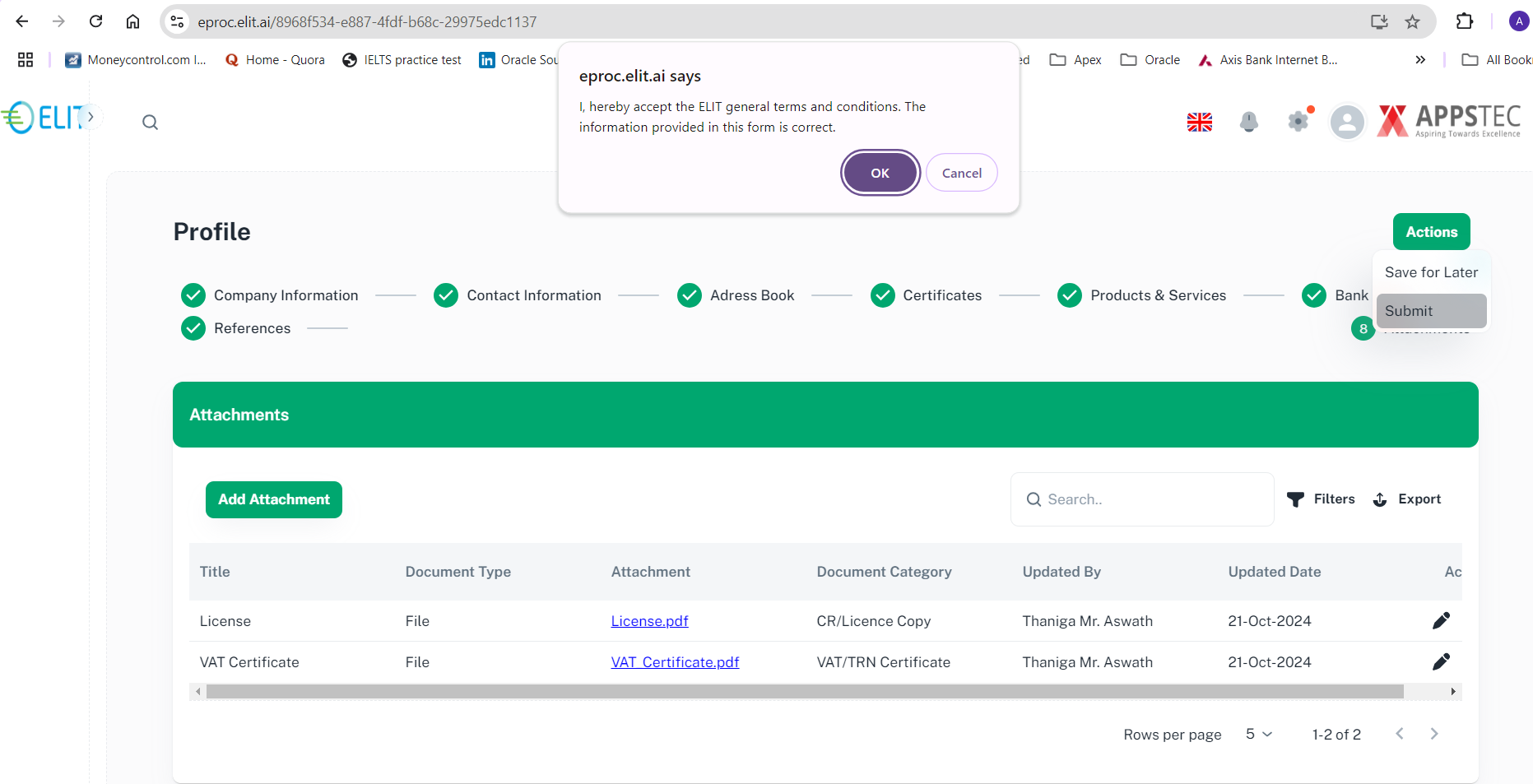
You will be prompted to accept the form is correct and Click ‘OK’ to proceed.
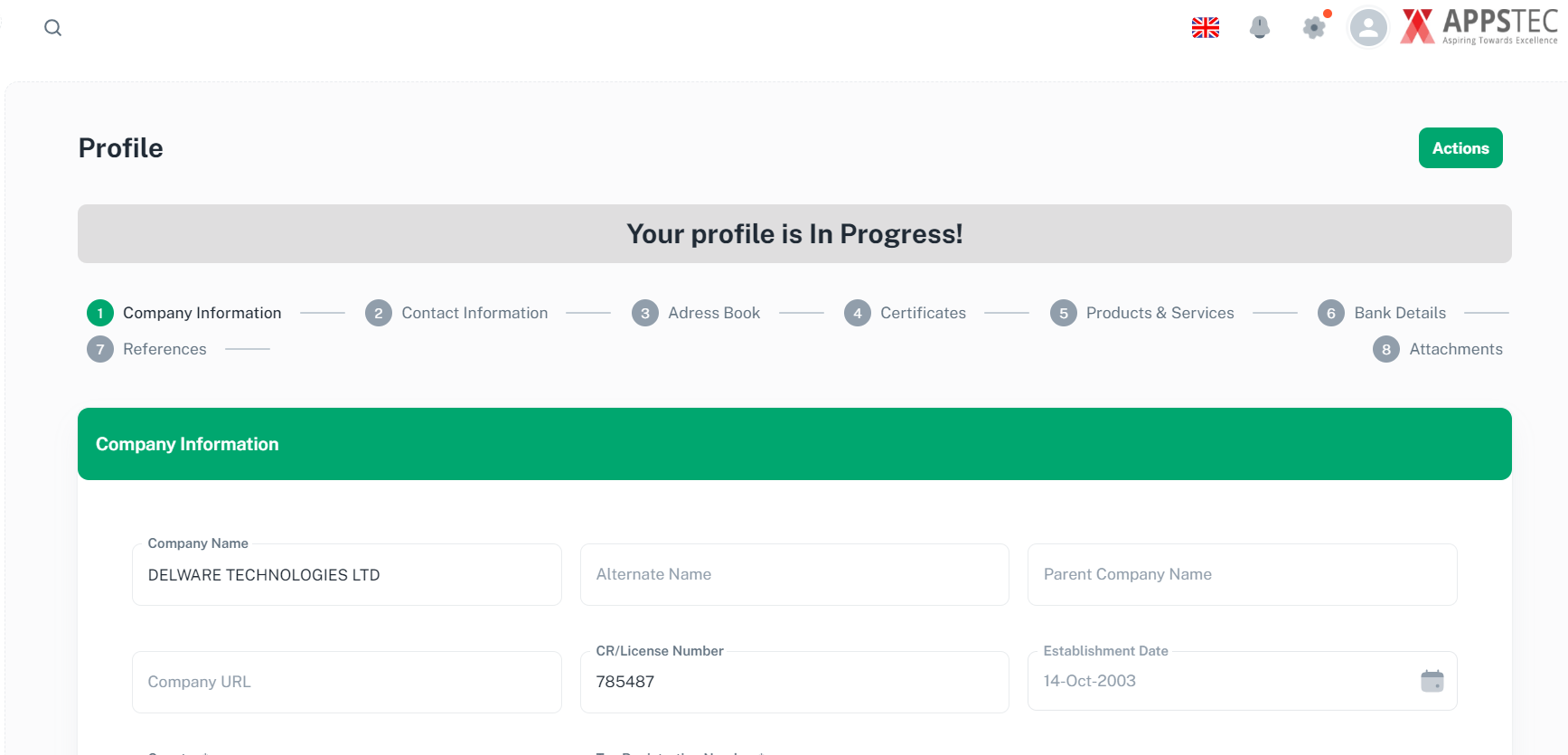
Now profile is submitted for review and approval.
Once Buyer review your profile and approve, you will receive an email notification.
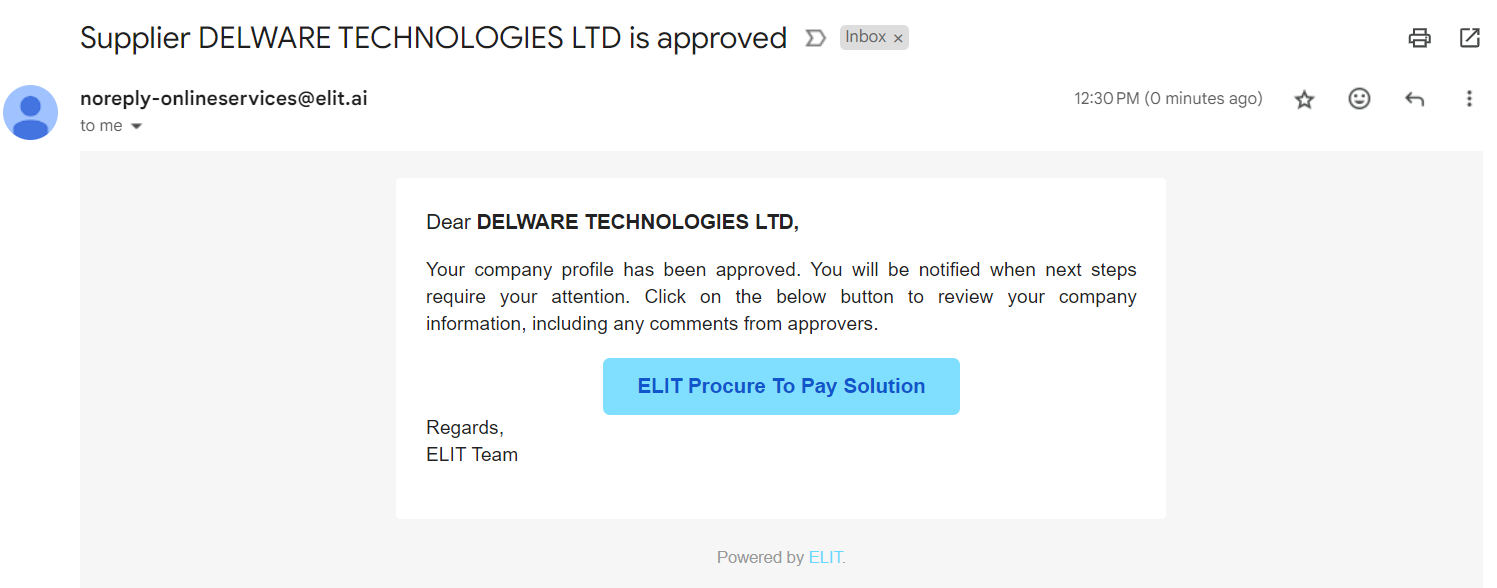
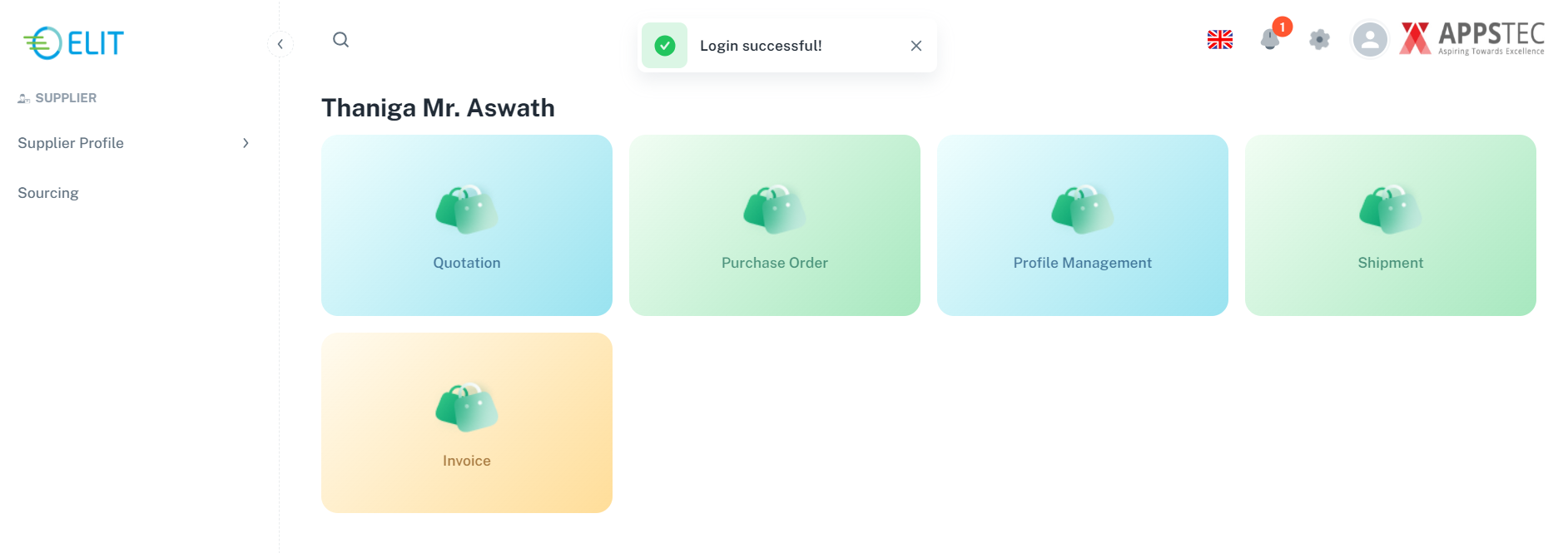
Once your profile is approved, you will be able to login and do the transactions.
3.10 Manage Supplier
Once your profile is approved by the buyer, then you can login to portal to view or modify your profile and manage your purchase order, shipments, Invoices and participate in sourcing events.
Navigate to ELIT > Supplier Management > Supplier Profile
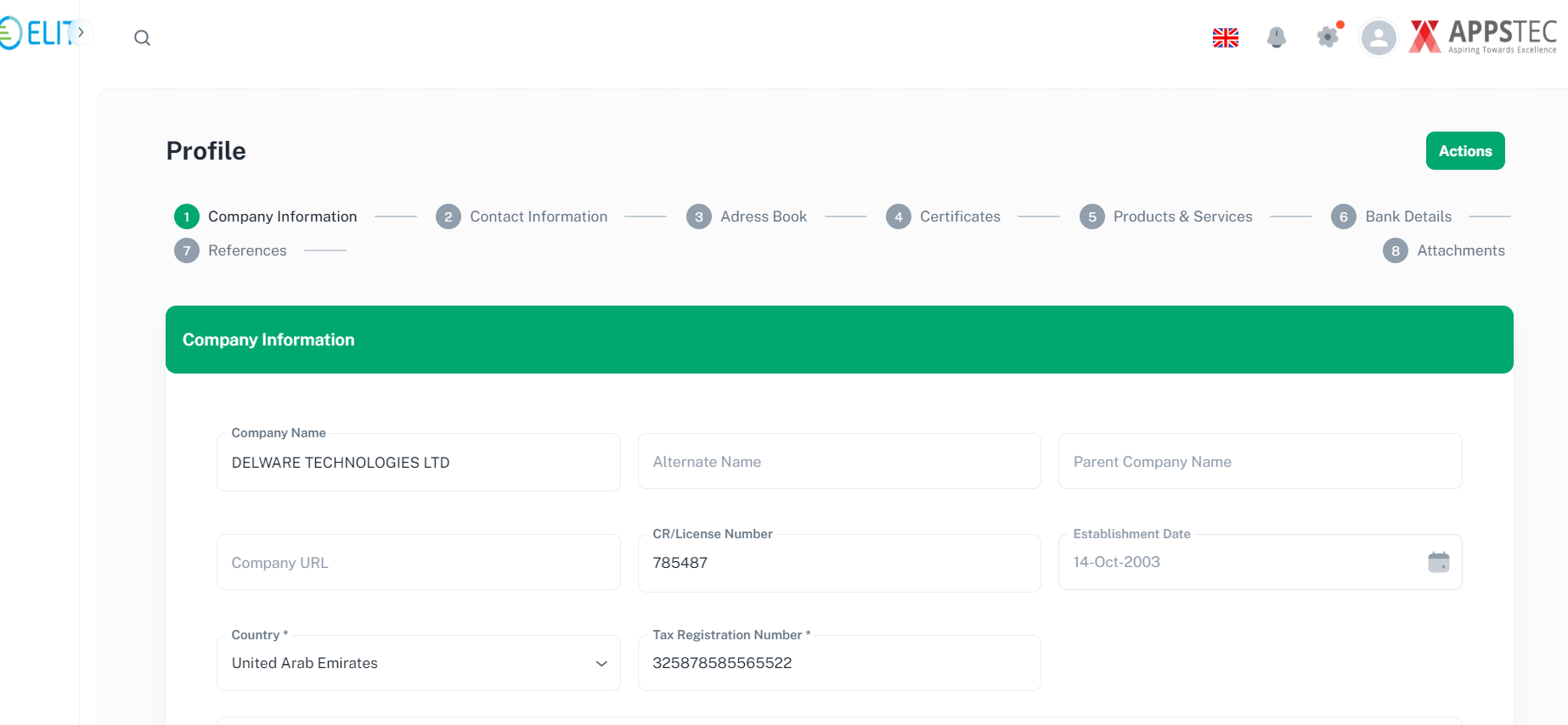
You are allowed to update below information in profile.
Contact Information
Address Book
Certificates
Product & Services
Bank Details
Attachments