ELIT User Guide
Page 4 of 74. Purchase Order
This Purchase Order serves as an official request for goods or services as outlined below. The order is subject to the terms and conditions specified by both parties and must be fulfilled in accordance with the agreed-upon delivery schedule. Please reference the Purchase Order number on all related documentation and correspondence. Any changes to the order must be communicated and approved prior to processing.
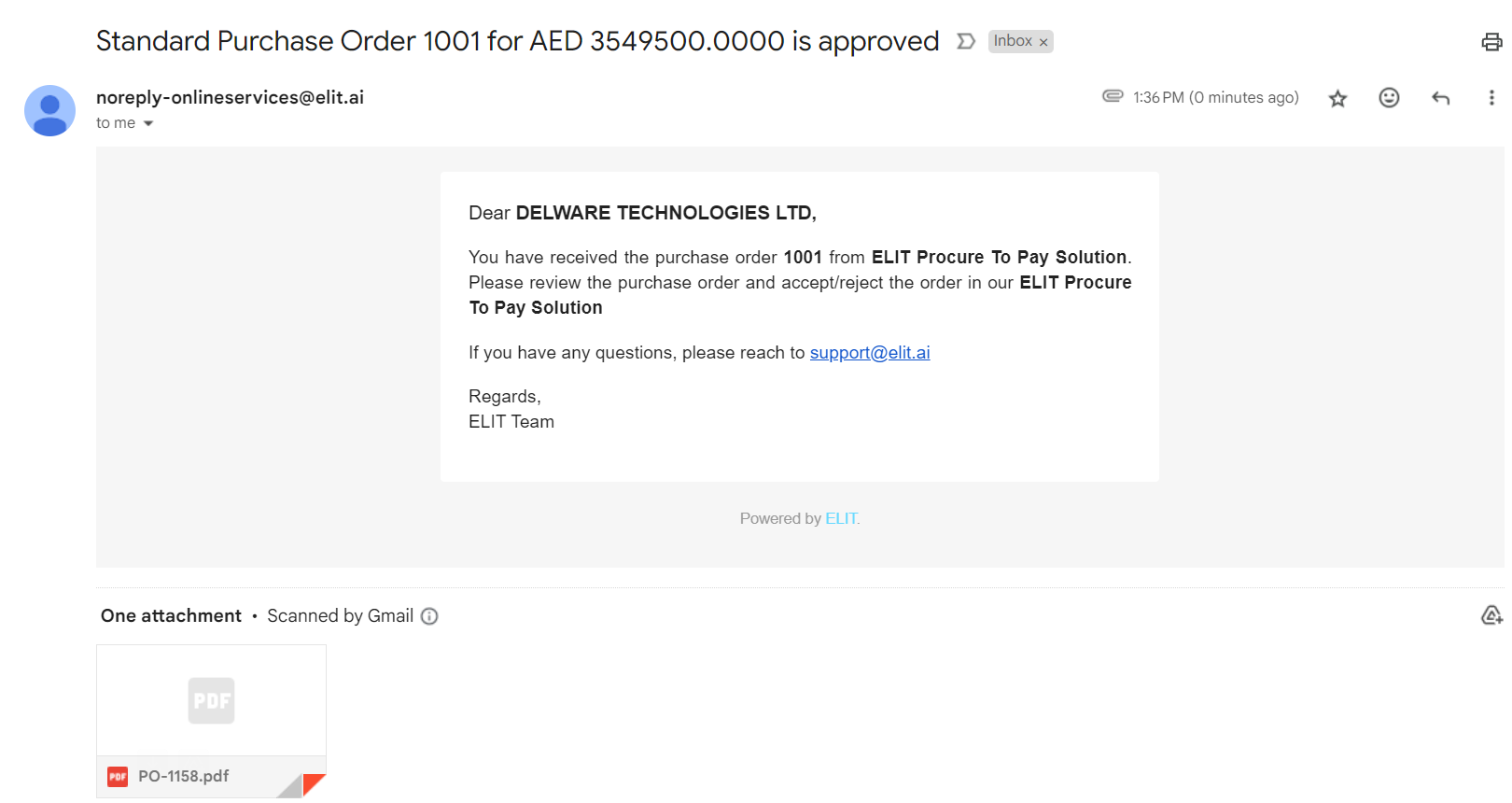
Once the purchase order is released to the supplier, they will receive an email with the purchase order document attached. The supplier is required to review the document and accept it in the system.
Navigate to ELIT > Supplier Management > Purchaser Order
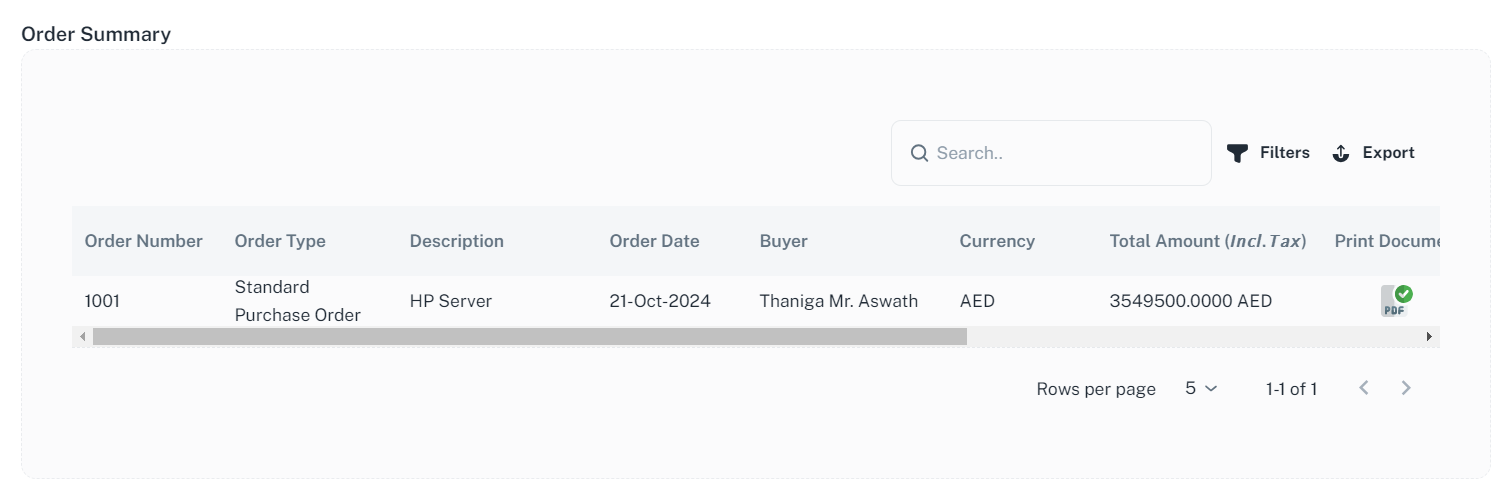
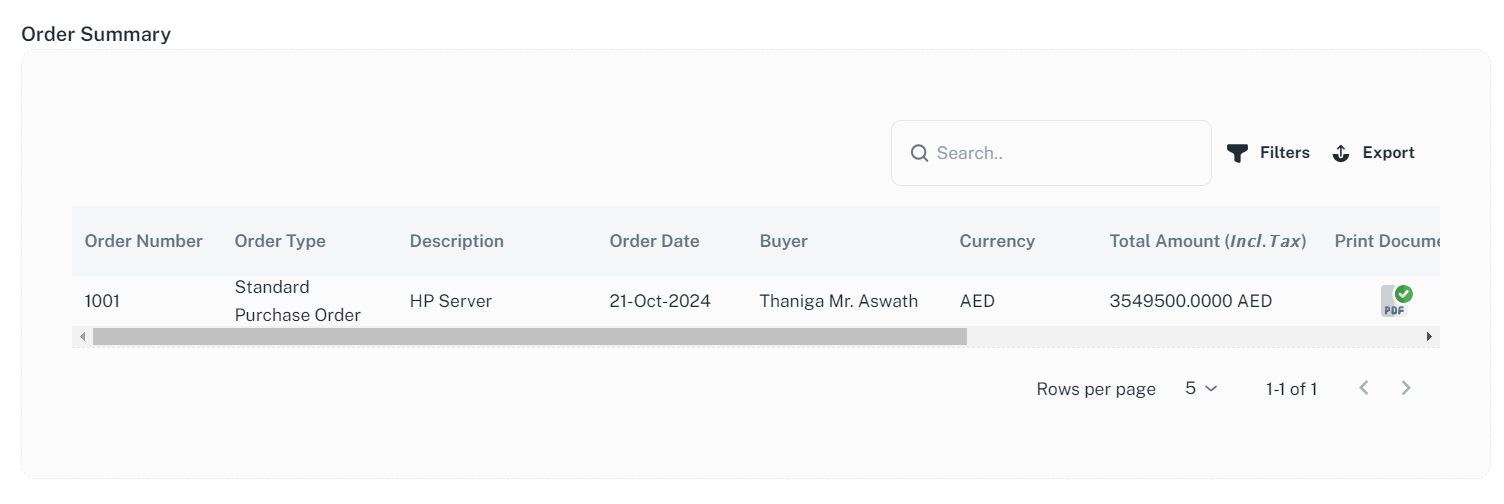
You will be redirected to Order Summary page
The Order Summary option allows users to view purchase order and take necessary actions.
4.1 Accept/Reject Purchase Order
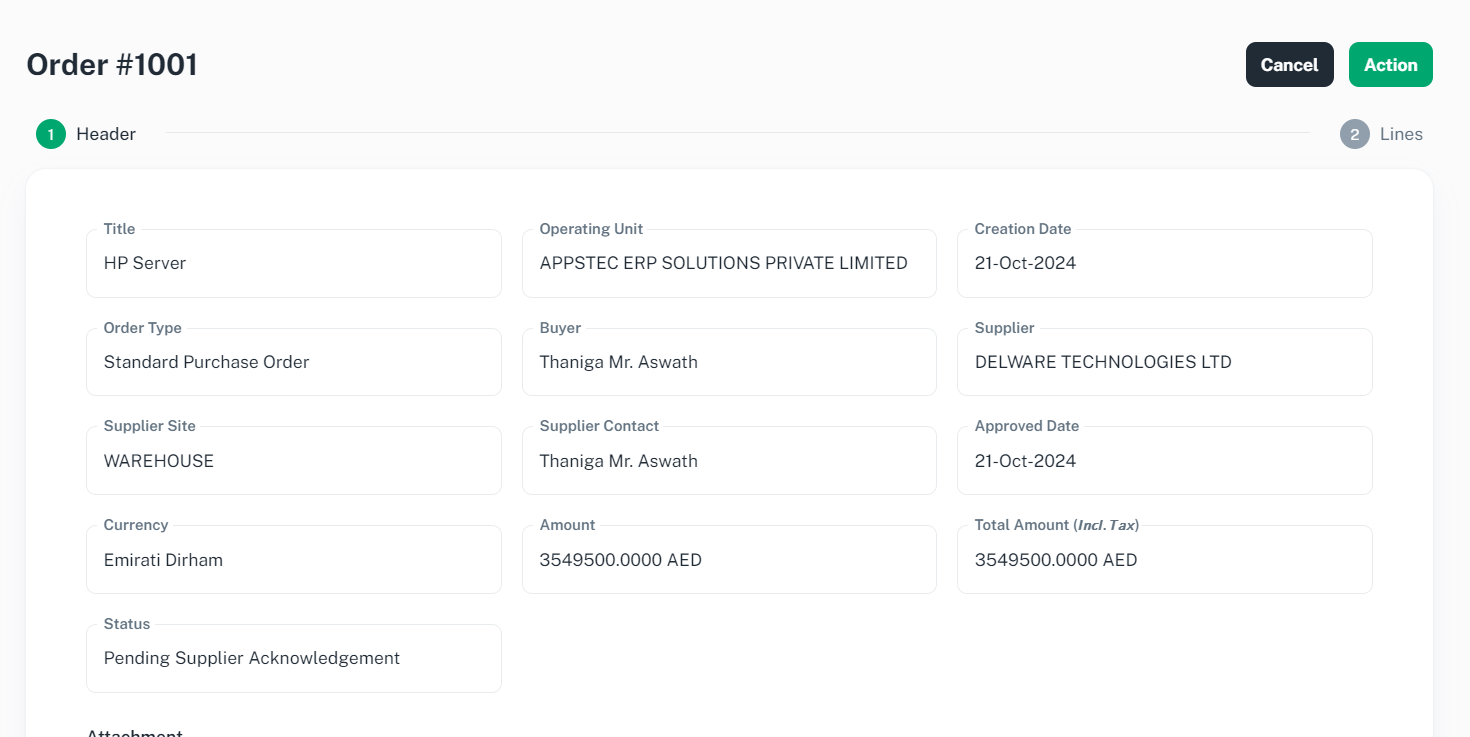
If you want to view purchase order details, click on desired row, you will be redirected to purchase order page.
Scroll down to view the terms and conditions
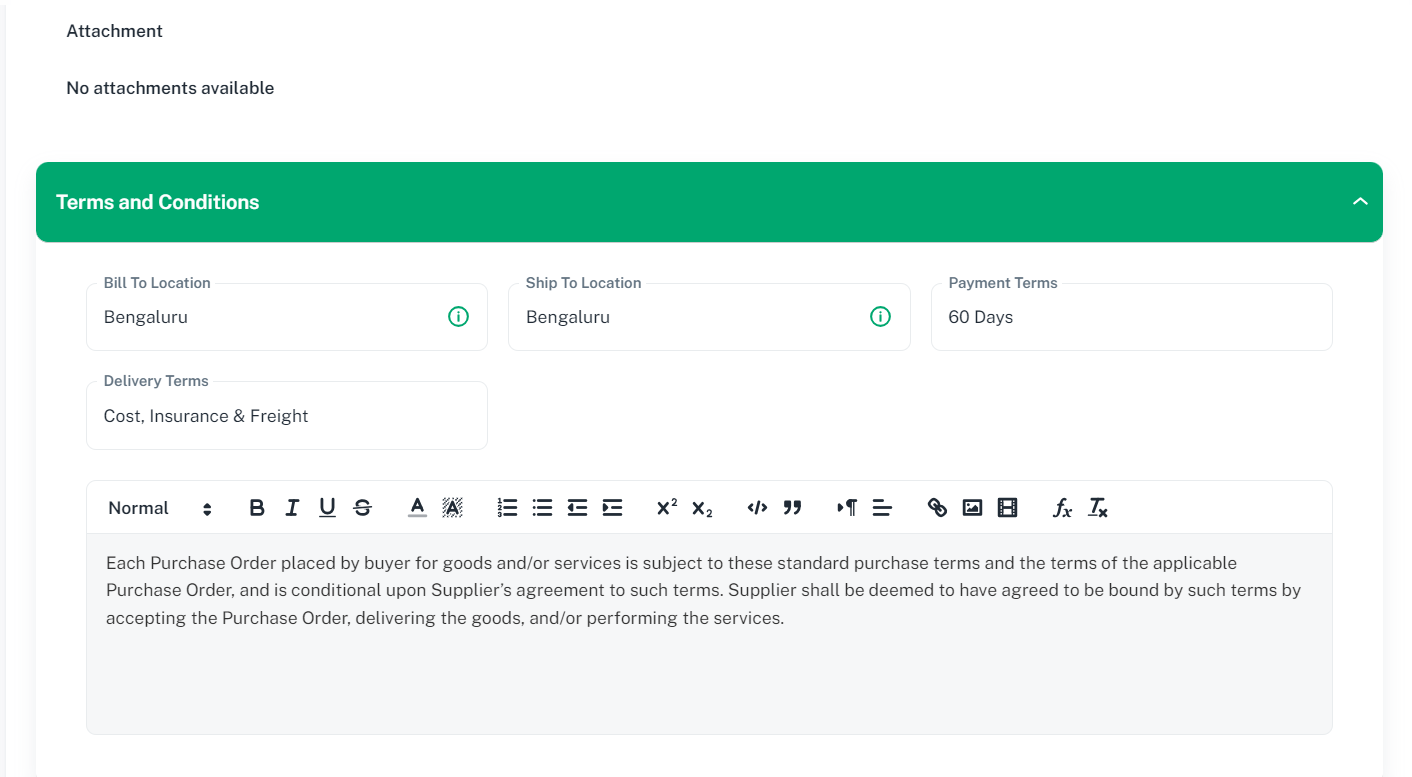
If you want to see line details, click ‘Next’ to proceed.
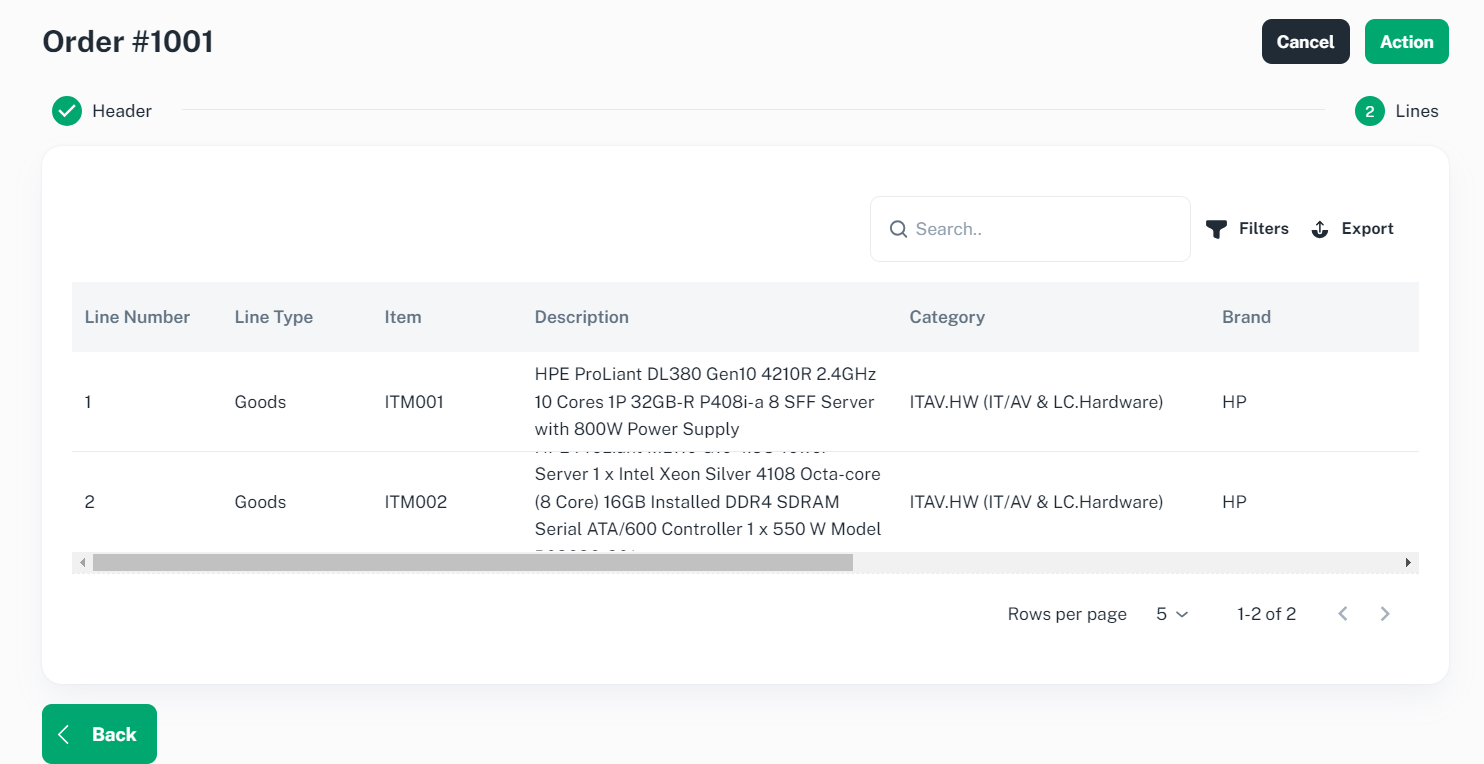
In order to accept or reject the purchase order, click ‘Action’ and select desired option
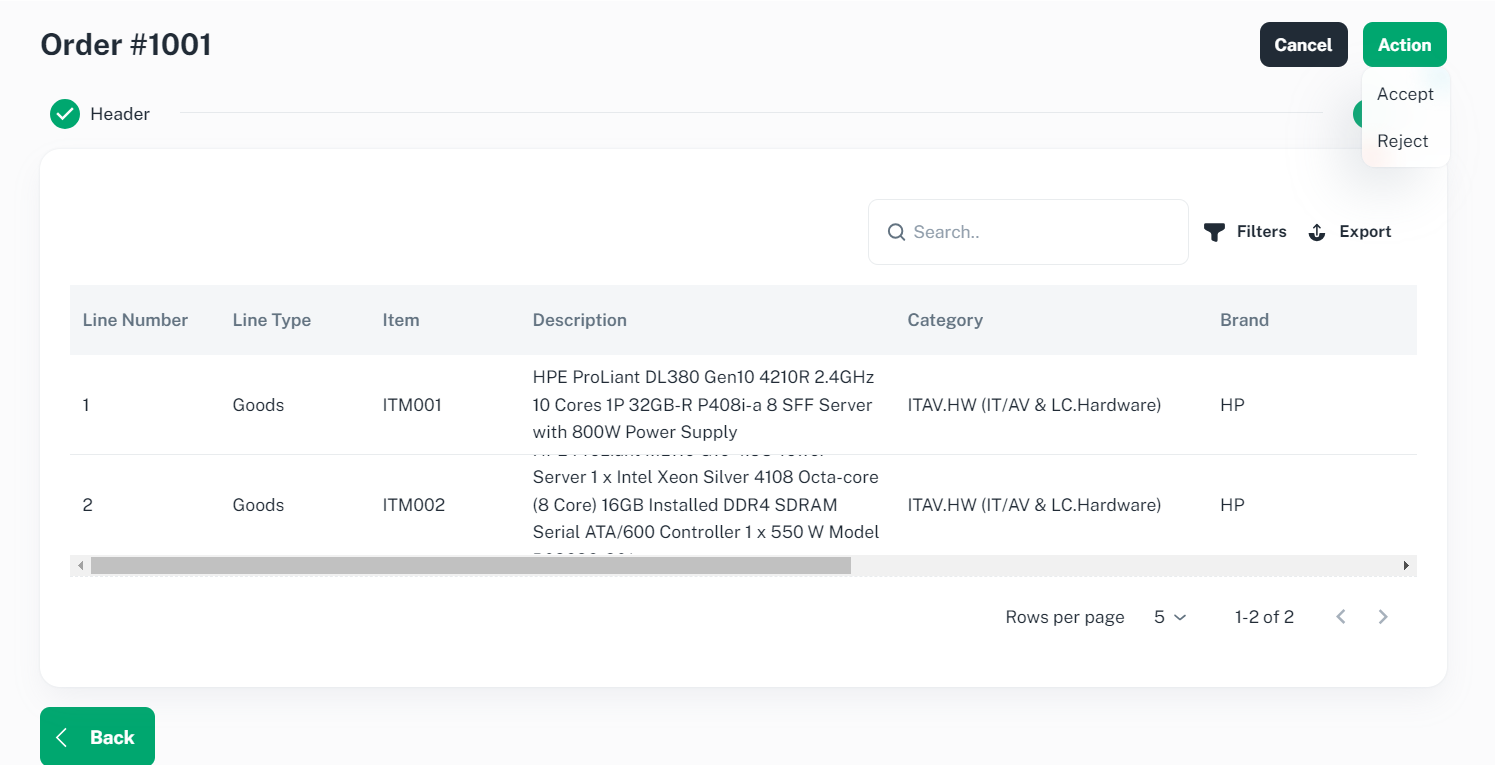
Below pop up will populate for Accept and Click ‘Ok’ button to proceed
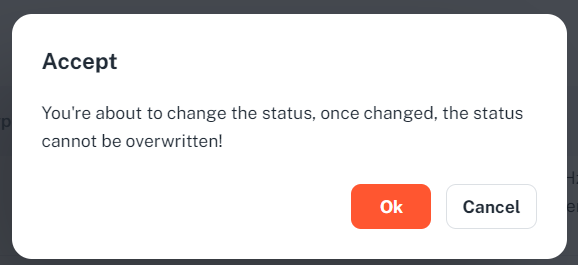
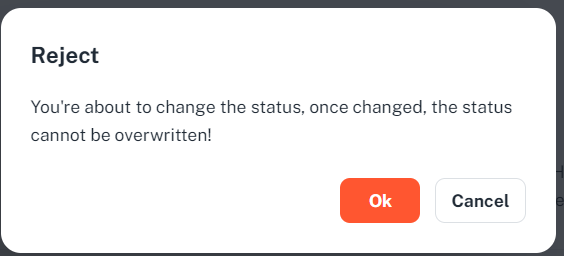
Below pop up will populate for Reject and Click ‘Ok’ button to proceed
Once Accepted, you will be alerted ‘Successfully Accepted’ message on the screen.
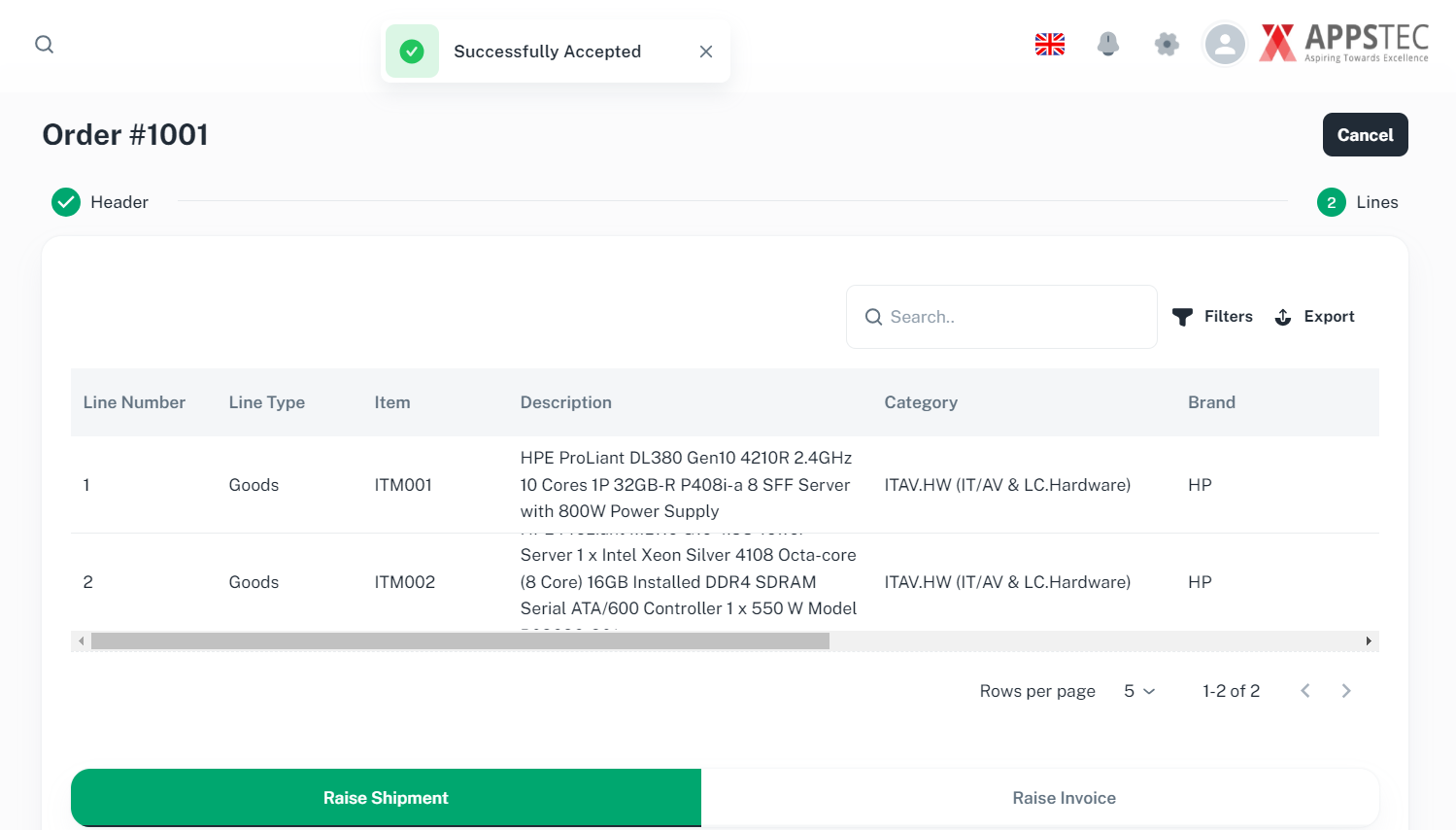
4.2 Raise Shipment Notice
Navigate to ELIT > Supplier Management > Purchaser Order
You will be redirected to Order Summary page
If you want to view purchase order details, click on desired row, you will be redirected to purchase order page.
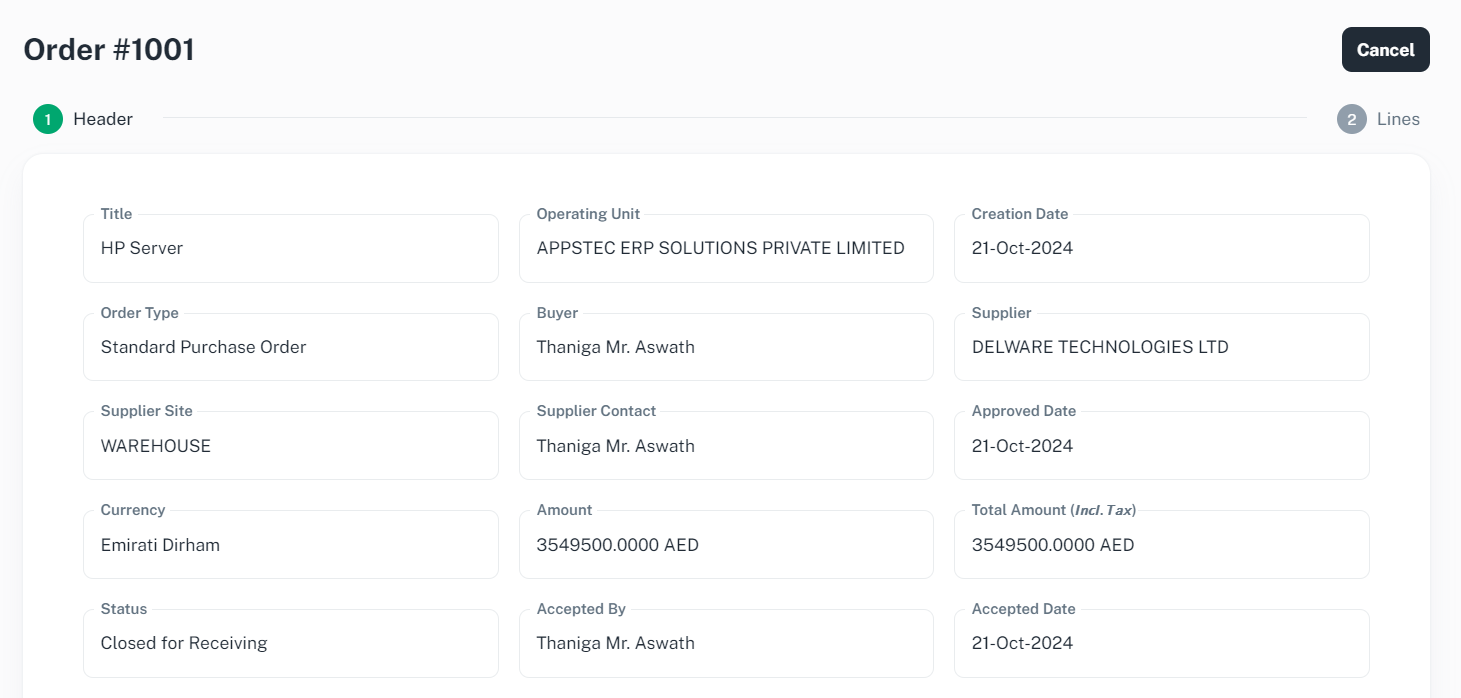
If you want to raise shipment, click ‘Next’ to proceed and scroll down
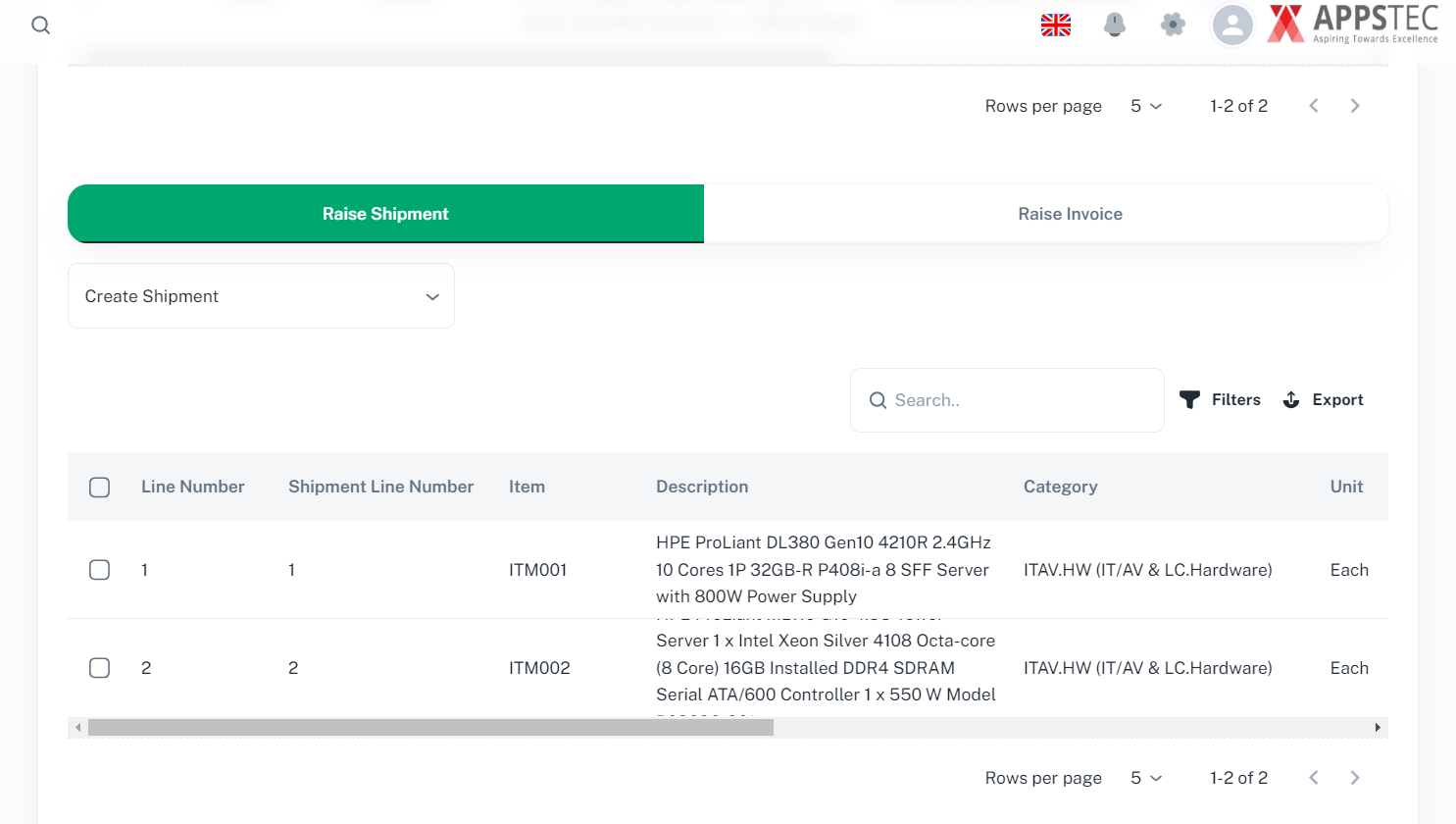
You will see the eligible lines for shipment. Please select the desired line and click on the "Create Shipment" dropdown to raise a shipment notice.
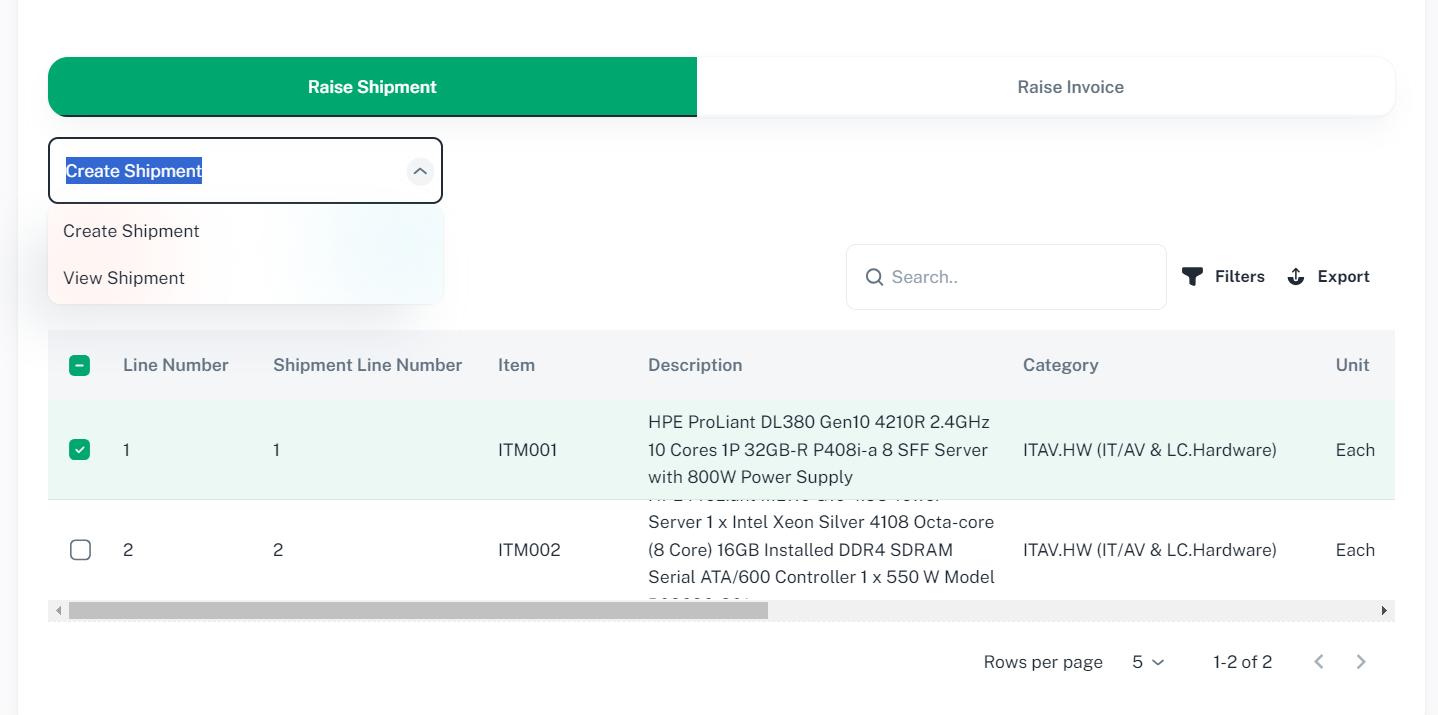
Click ‘Create Shipment’ to proceed.
You will be redirected to Order Shipment Page.
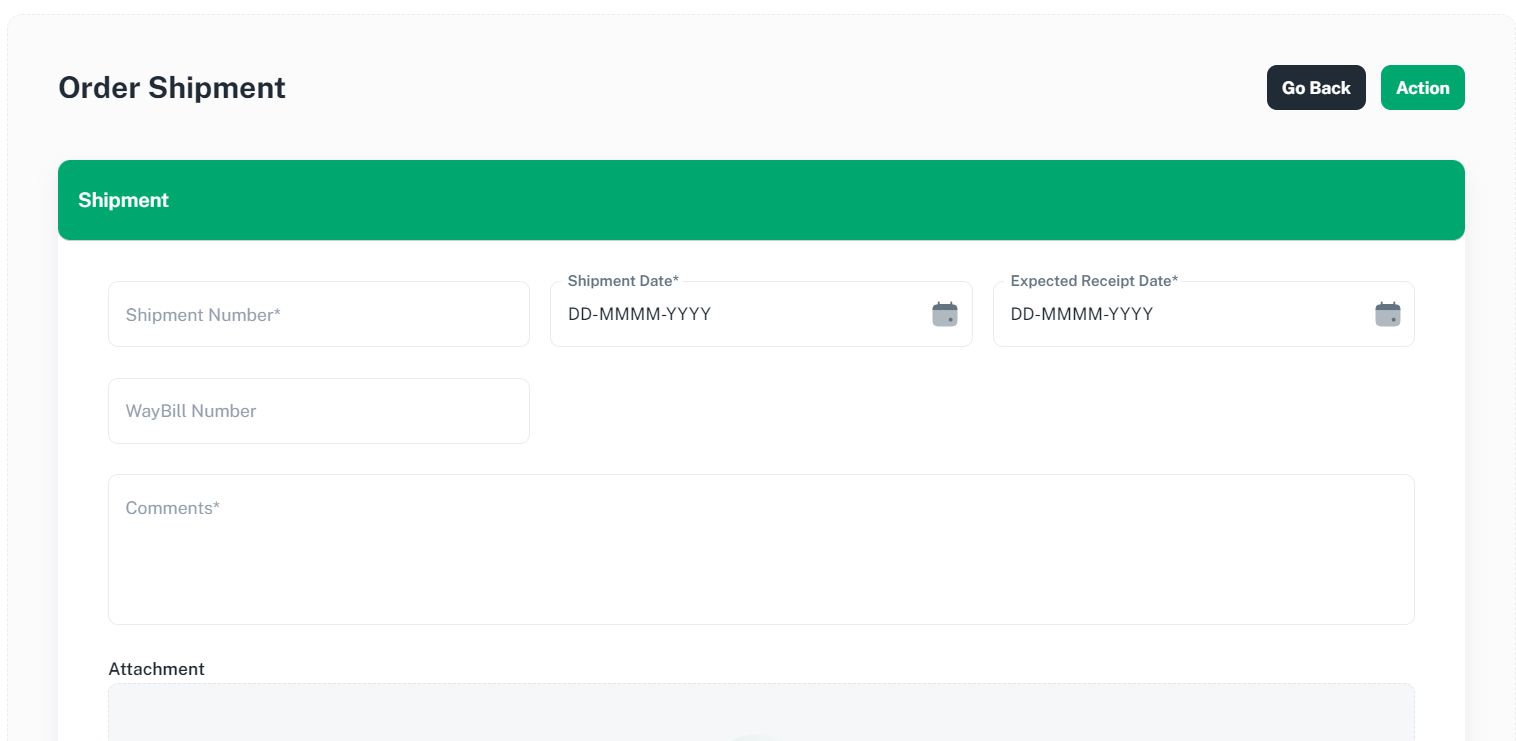
Provide necessary information and scroll down.
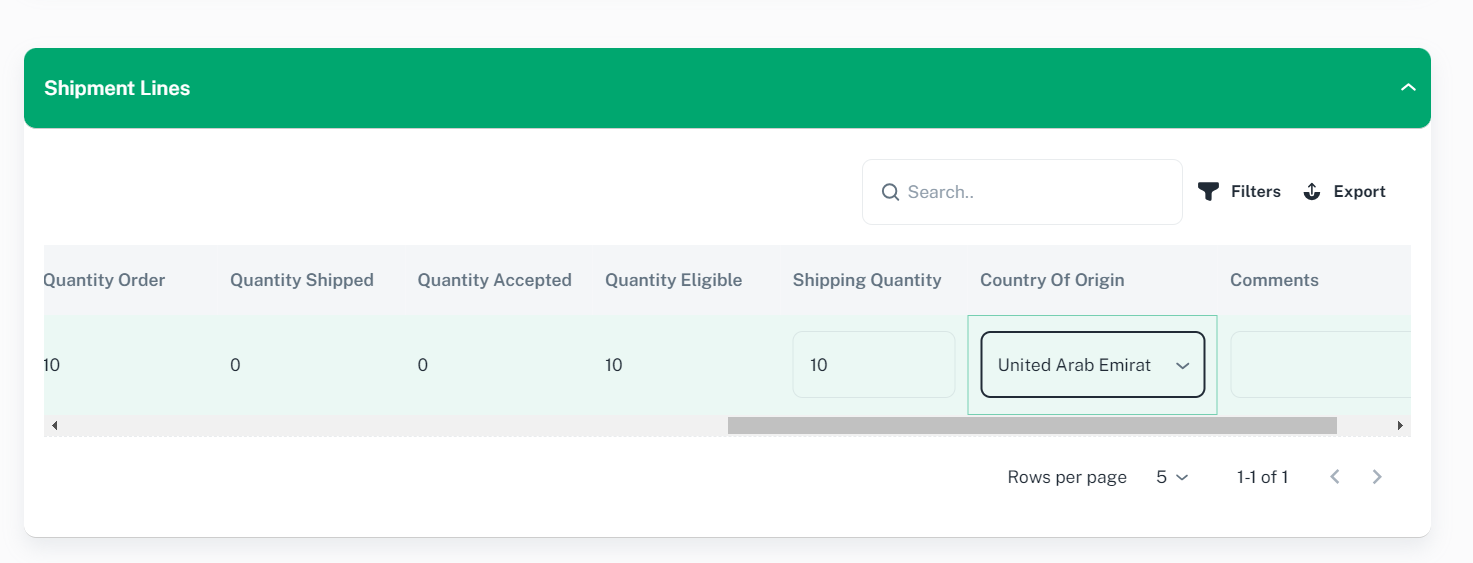
Provide necessary information and click on Action to Submit
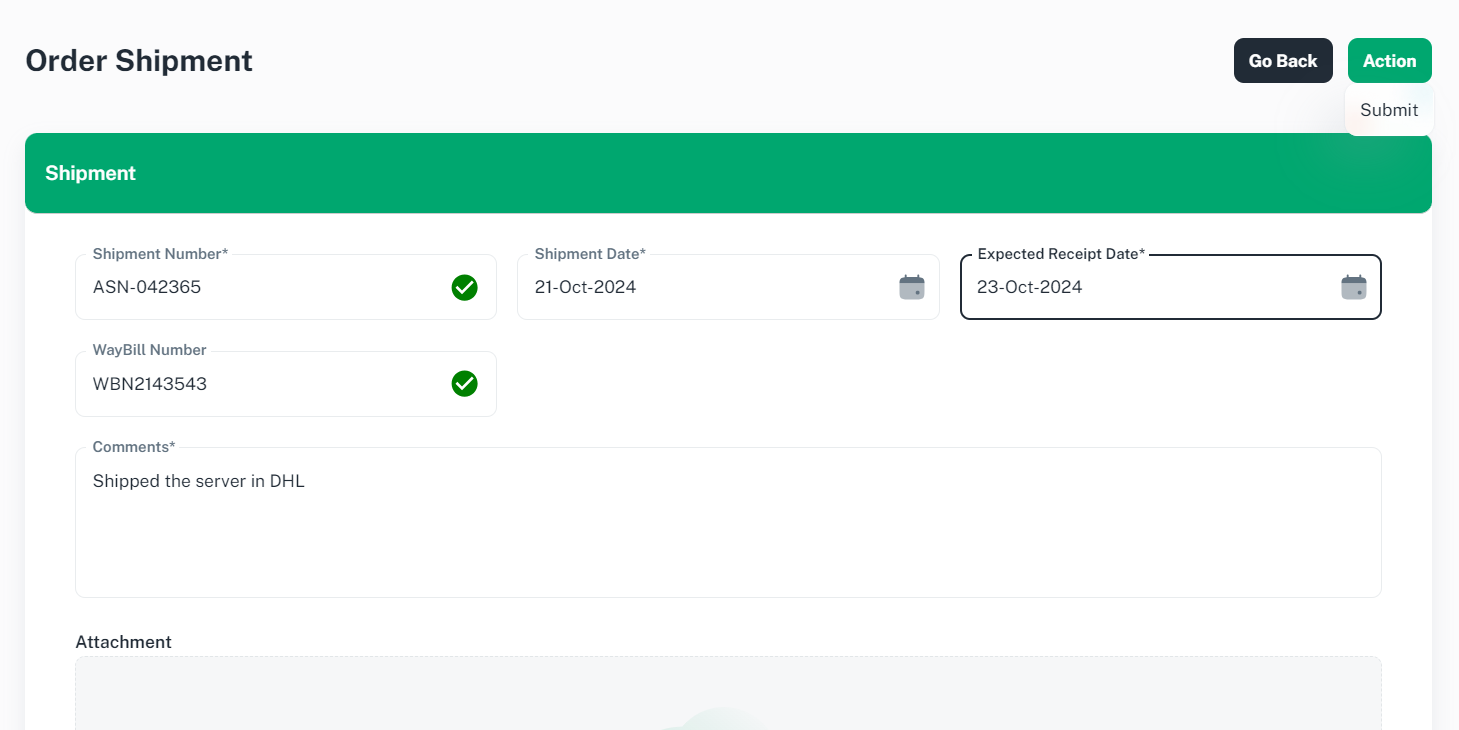
On submit, you will be redirected to Shipment Summary page.
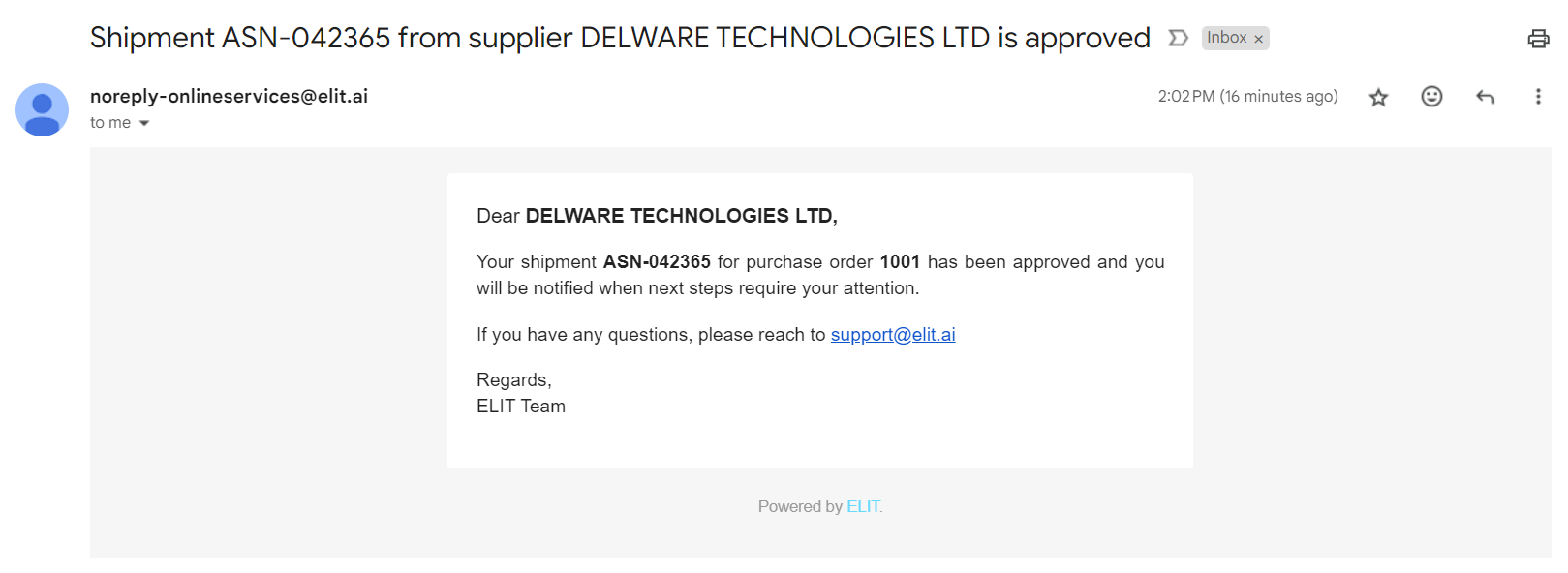
Buyer will inspect the goods upon receipt and then approve the shipment Notice.
Once your shipment has been approved, you will receive an email notification.
4.3 Raise Invoice
Navigate to ELIT > Supplier Management > Purchaser Order
You will be redirected to Order Summary page
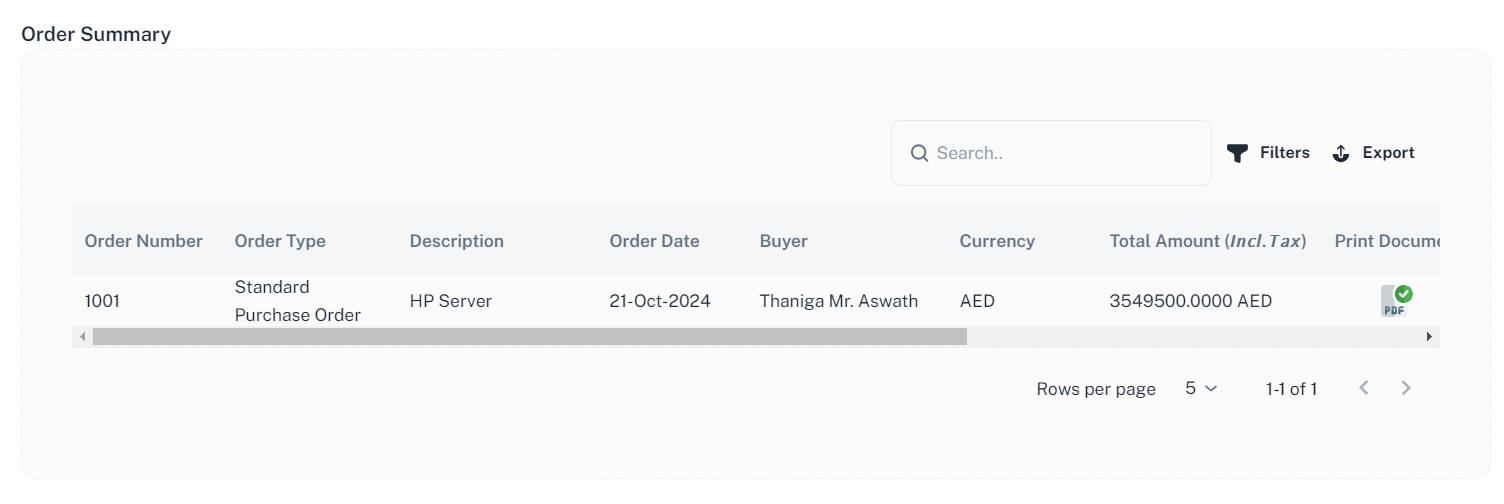
If you want to view purchase order details, click on desired row, you will be redirected to purchase order page.
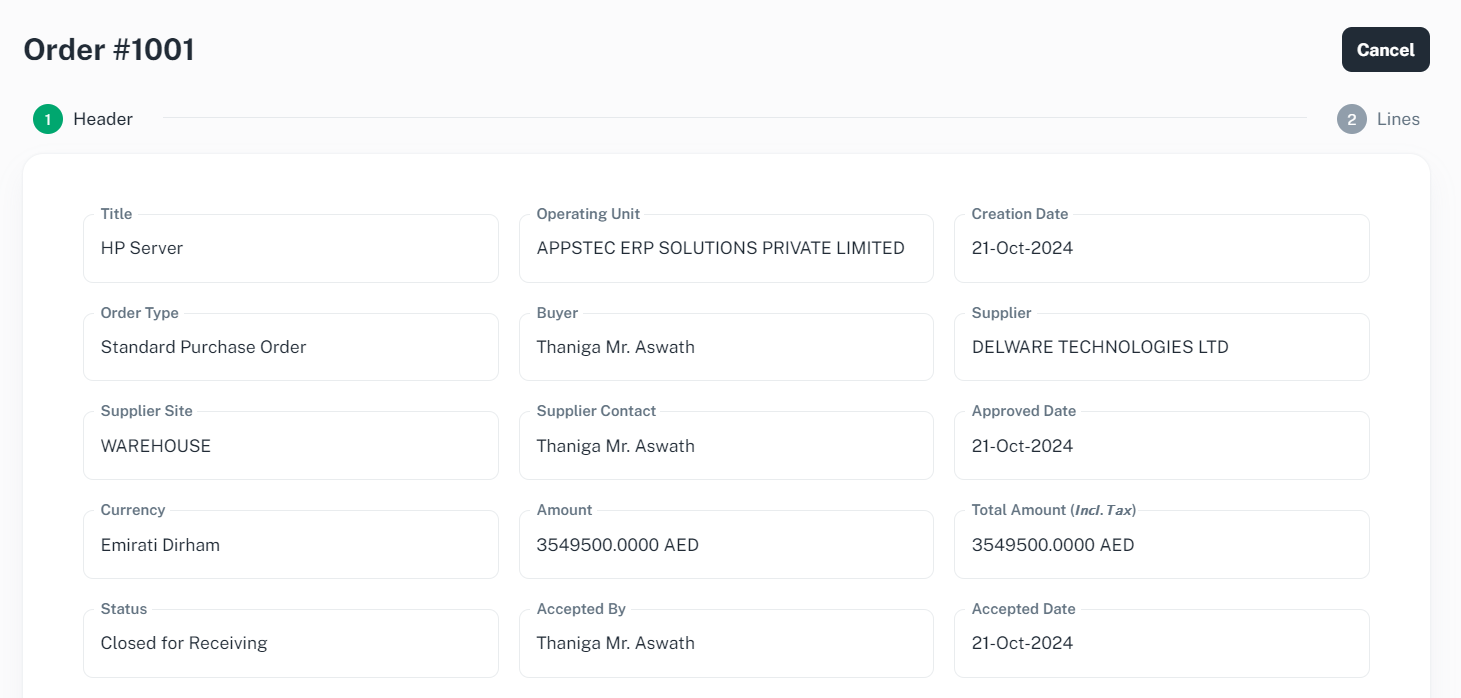
If you want to raise invoice, click ‘Next’ to proceed and scroll down
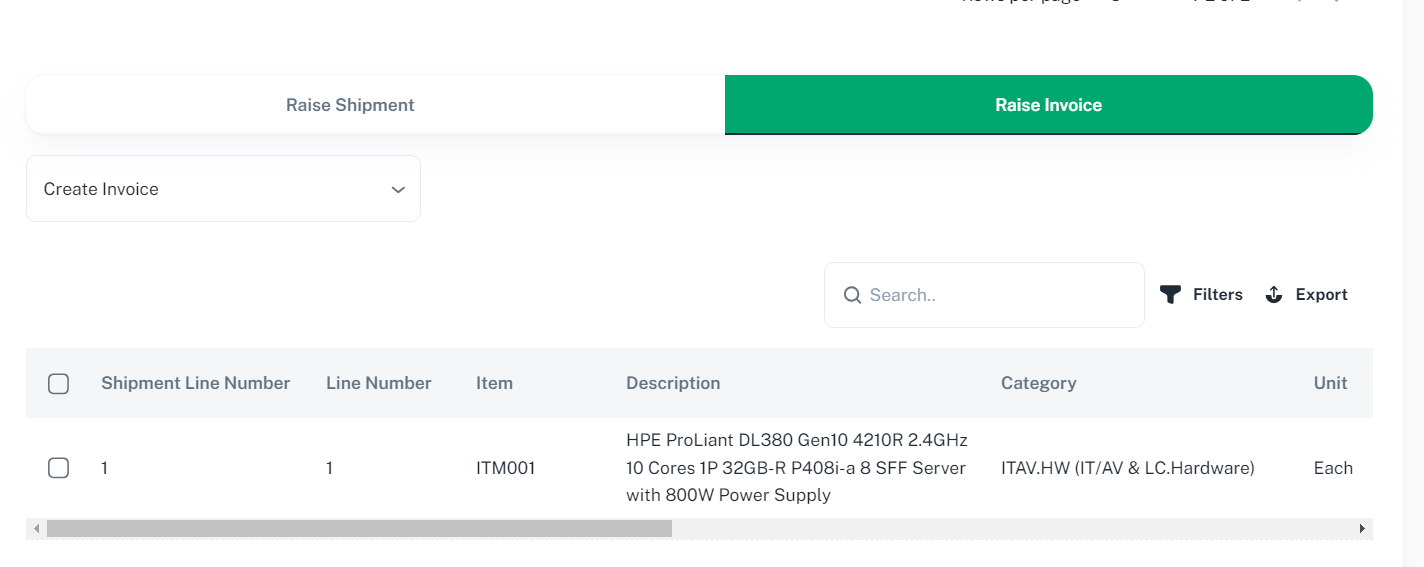
You will see the eligible lines for invoice. Please select the desired line and click on the "Create Invoice" dropdown to raise an invoice.
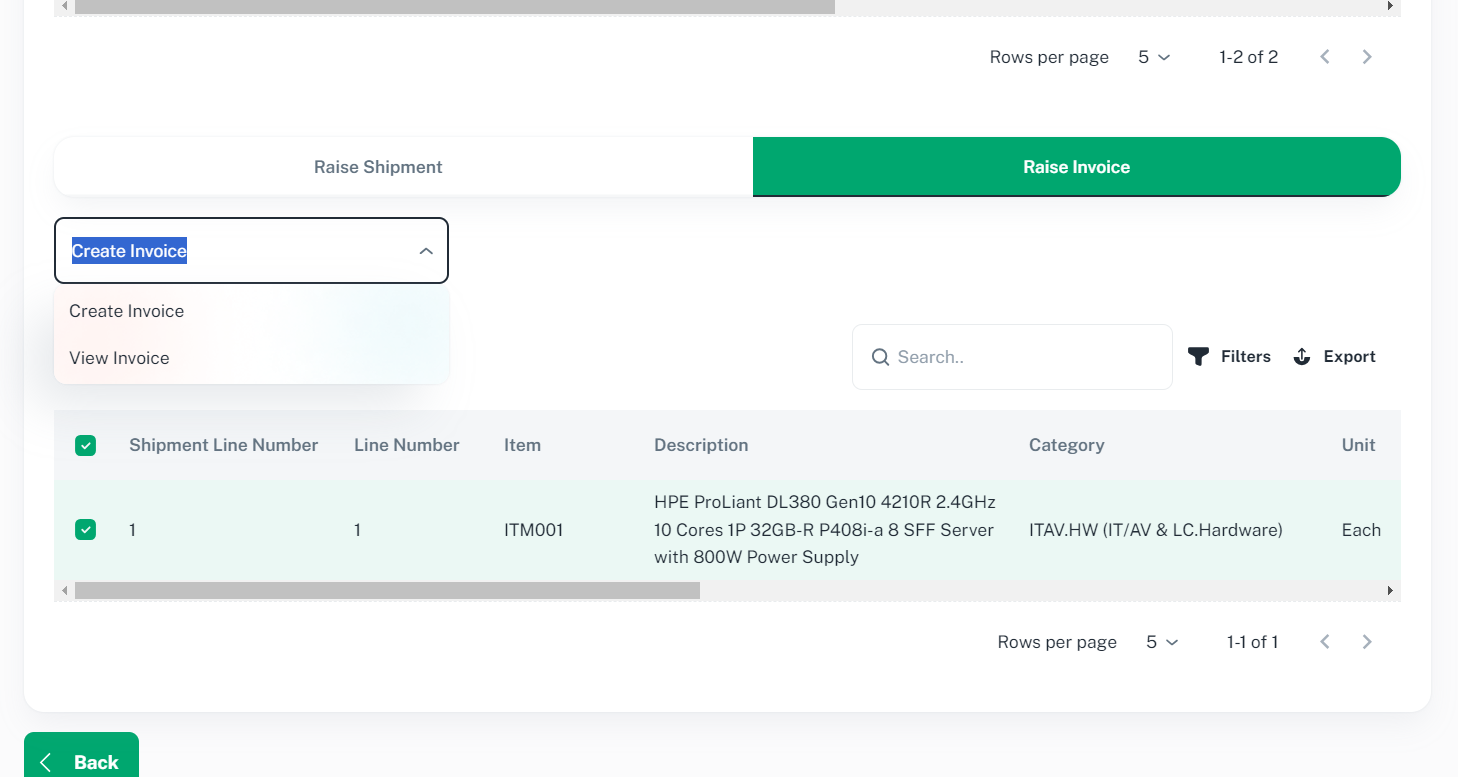
Click ‘Create Invoice to proceed.
You will be redirected to Invoice Page.
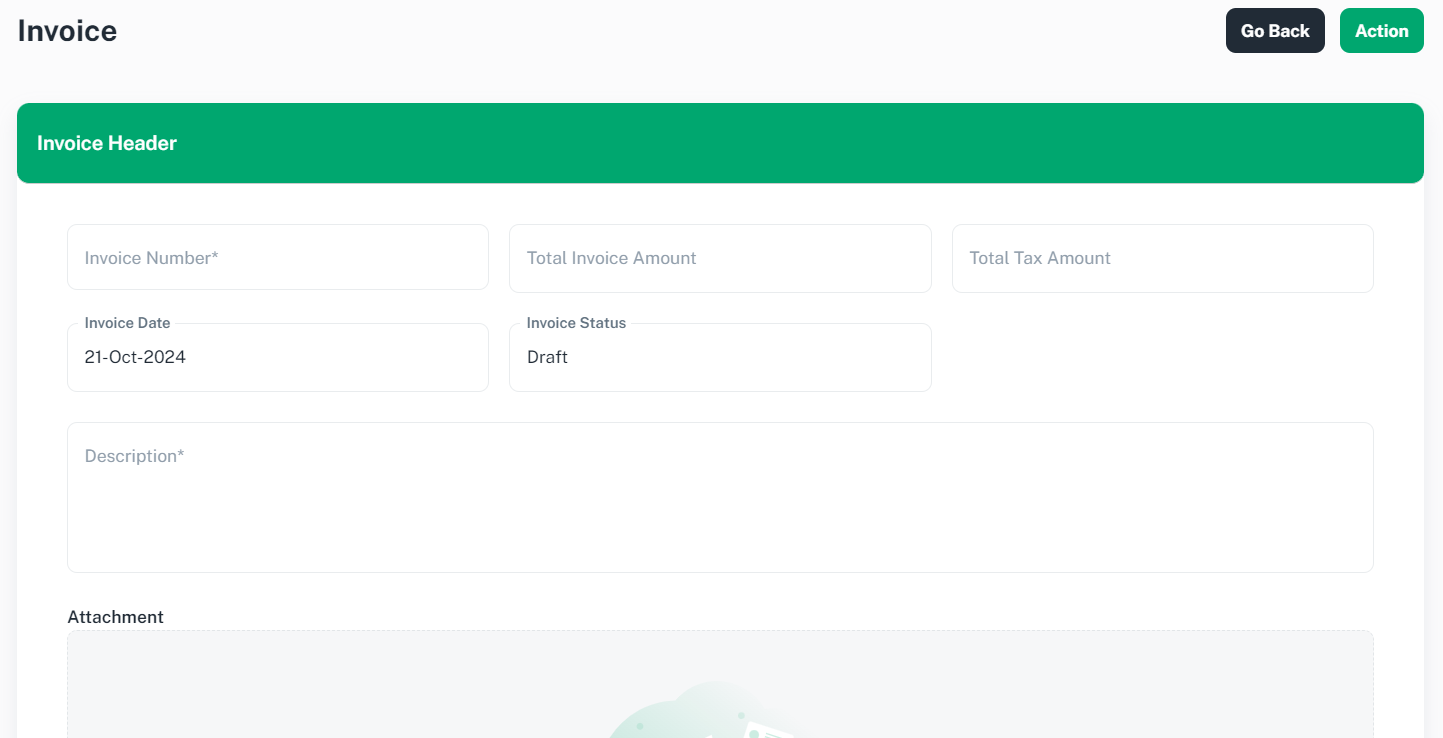
Provide necessary information and scroll down
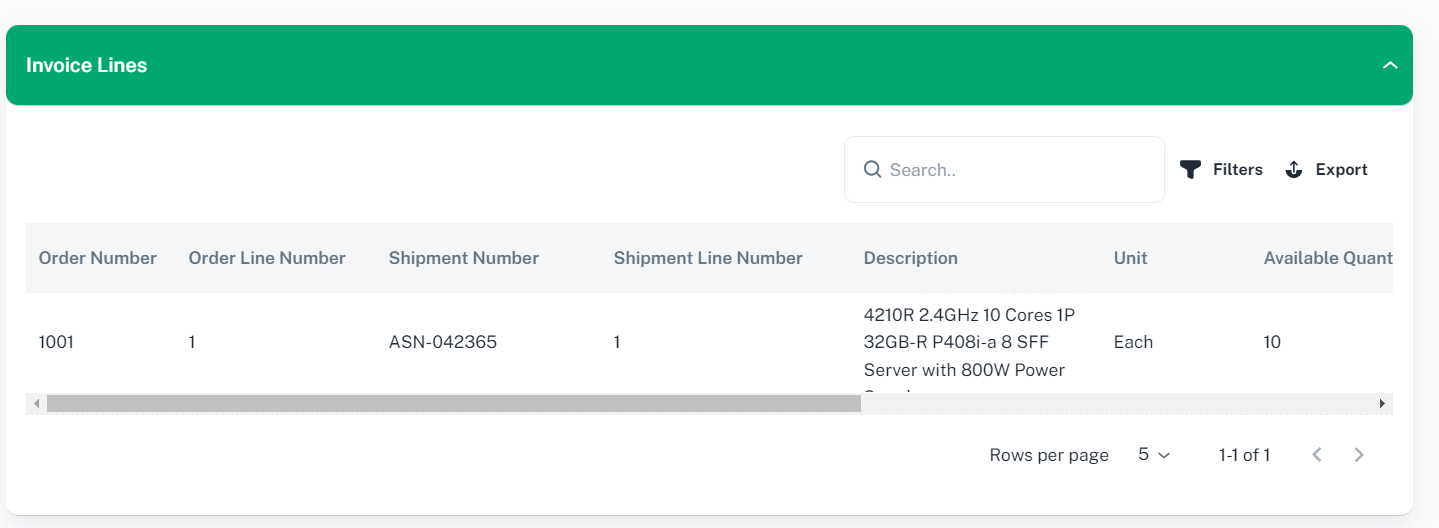
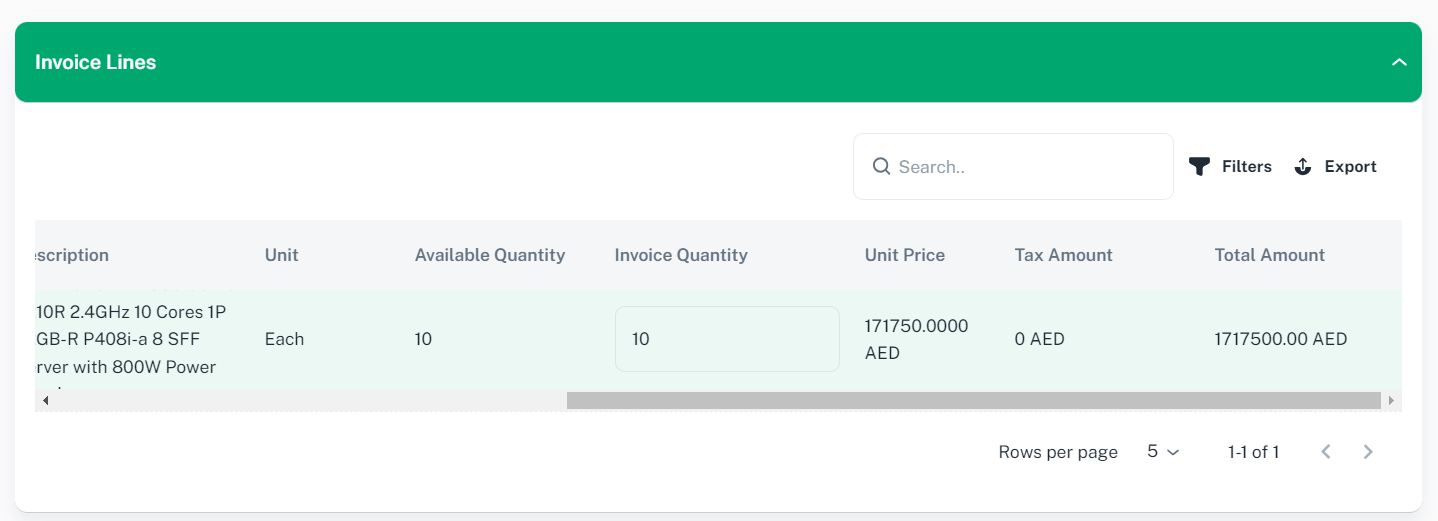
Provide necessary information and click on Action to Submit
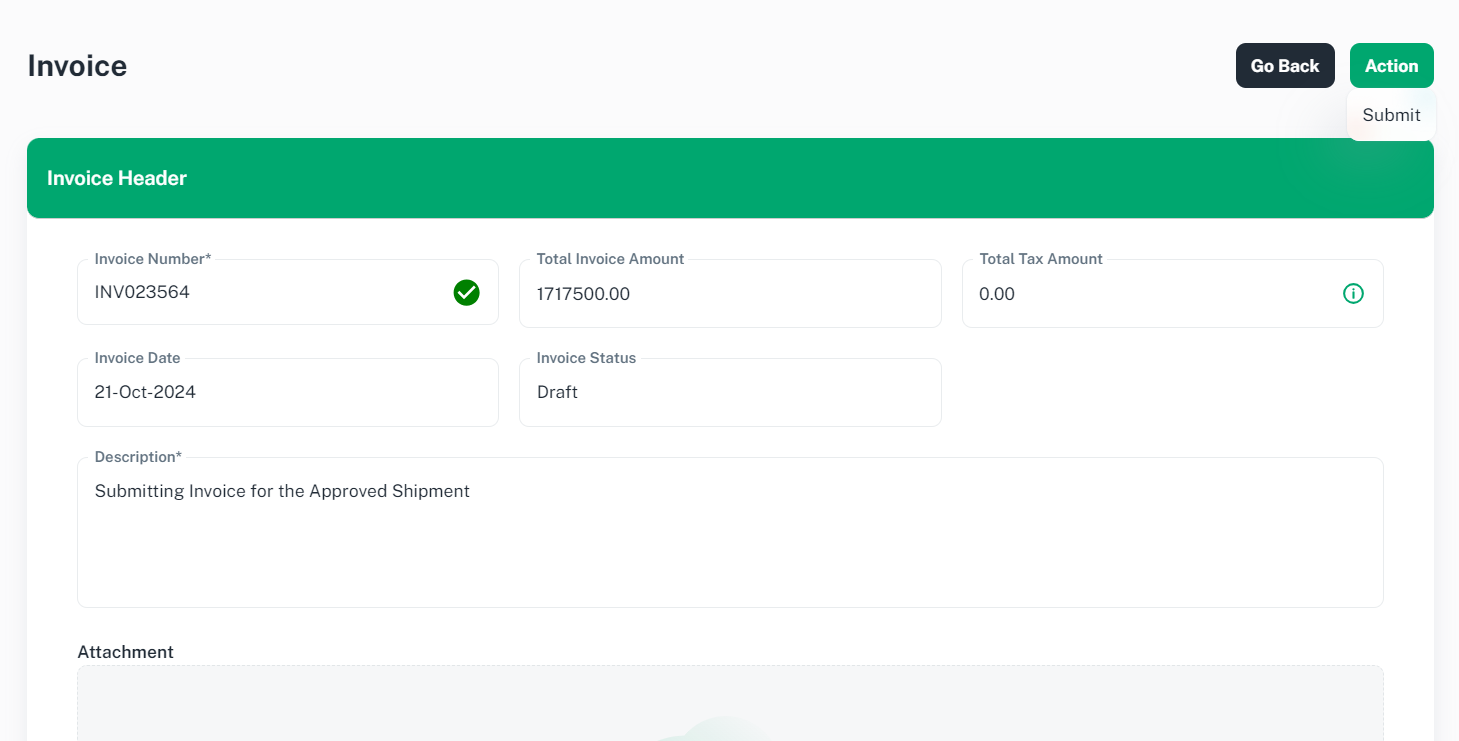
On submit, you will be redirected to Invoice Summary page.
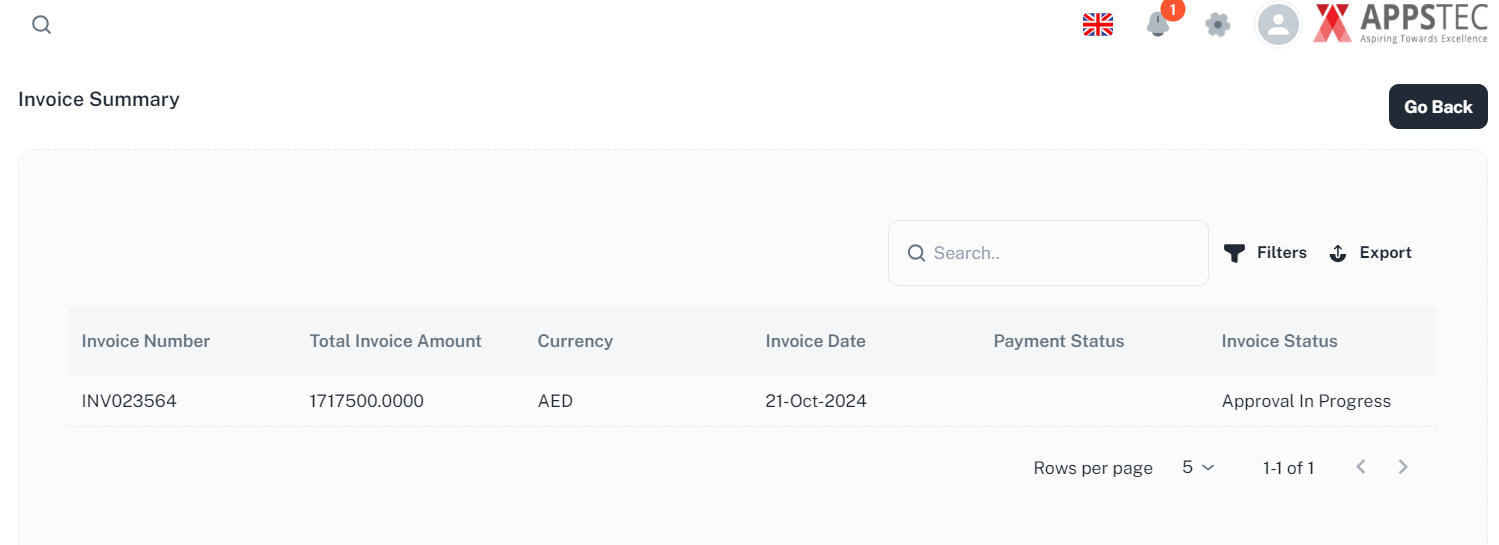
Buyer will review the invoice and then approve it.
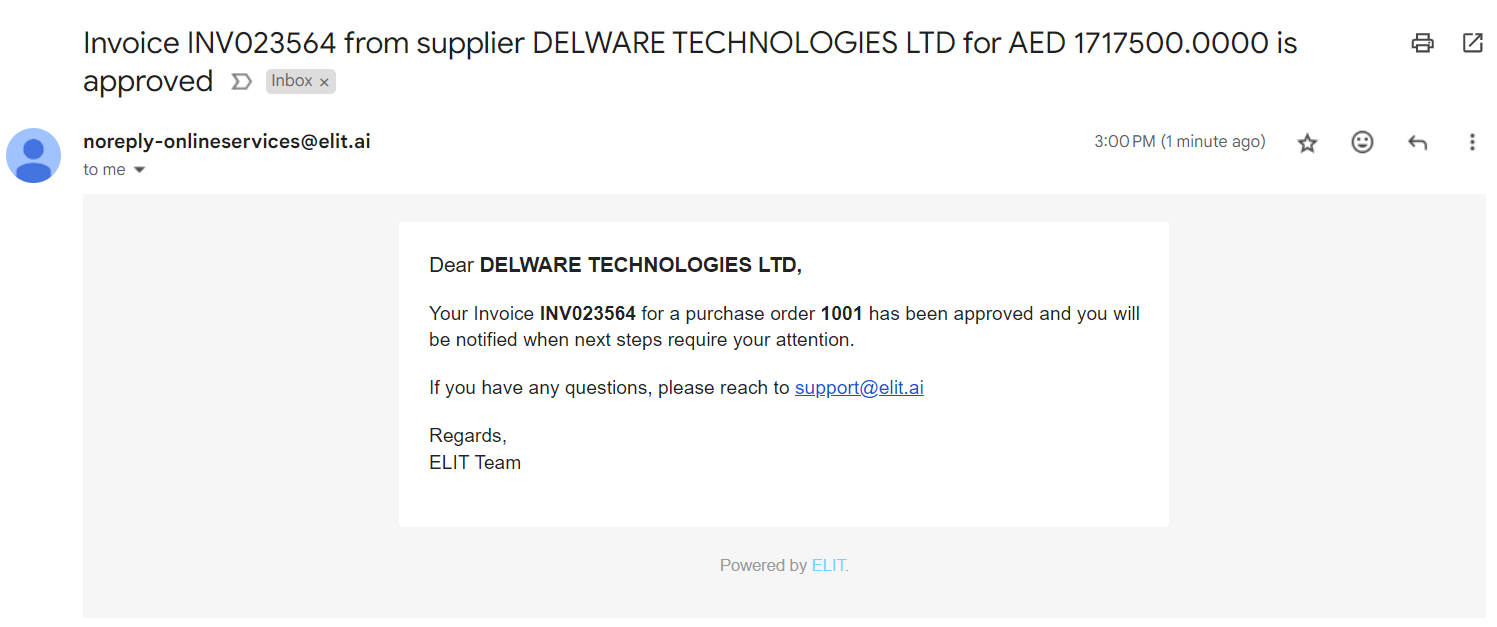
Once your Invoice has been approved, you will receive an email notification.